YouTube has become the ultimate platform for content creators, and the quality of your video Editing can be the difference between viral success and obscurity. Whether you’re a beginner vlogger, gaming content creator, or aspiring filmmaker, choosing the right video editing software is crucial.
The challenge? There are dozens of video editing tools available, each with different features, pricing, and learning curves. A tool that’s perfect for a beginner might be limiting for a professional, and expensive software doesn’t always deliver better results.
In this comprehensive guide, I’ll walk you through the best video editing software for YouTube creators in 2026. I’ve tested and evaluated each tool based on ease of use, features, output quality, and value for money. By the end of this guide, you’ll know exactly which editor is right for your channel.
⚡ Quick Answer: Start free with CapCut or DaVinci Resolve. Upgrade to Filmora ($60/year) for more effects. Once monetized, move to Adobe Premiere Pro or Final Cut Pro (Mac) for professional results.
Jump to a section
Quick Comparison Table: Top Video Editing Software for YouTubers
| Software | Best For | Starting Price | Free Version | Skill Level |
|---|---|---|---|---|
| Adobe Premiere Pro | Professional creators | $55/month | No | Advanced |
| Final Cut Pro | Mac users & professionals | $300 (one-time) | No | Advanced |
| DaVinci Resolve | Color grading & all-in-one | Free | Yes | Intermediate |
| CapCut | Quick, easy edits | Free | Yes | Beginner |
| Filmora | Beginners with effects | $60/year | Yes (limited) | Beginner |
| Camtasia | Screen recording & tutorials | $120/year | Yes (trial) | Beginner |
| Sony Vegas Pro | Windows professionals | $100/year | No | Intermediate |
| HitFilm Express | VFX & effects | Free | Yes | Intermediate |
| Shotcut | Open-source editing | Free | Yes | Intermediate |
| iMovie | Mac beginners | Free | Yes | Beginner |
Why Video Editing Matters for YouTube Success
Before diving into specific tools, let’s understand why video editing is so critical for YouTube creators:
- Retention Rate: High-quality editing keeps viewers watching longer, improving your retention metrics
- Algorithm Boost: YouTube’s algorithm favors videos with longer watch time and lower bounce rates
- Professionalism: Polished editing makes your channel look established and trustworthy
- Viewer Engagement: Good pacing, transitions, and effects keep content engaging
- SEO Benefits: Well-edited videos with proper thumbnails and titles get more clicks
- Monetization: Better videos = more subscribers = faster path to monetization
Studies show that creators who invest in proper video editing see 30-40% higher average view duration compared to raw footage.
1. Adobe Premiere Pro: The Industry Standard
Best For: Professional YouTubers, filmmakers, and agencies
Adobe Premiere Pro is the gold standard in professional video editing. If you’re serious about YouTube, this is often the tool serious creators graduate to.
Key Features:
- Industry-standard timeline editing
- Advanced color correction and grading
- Seamless Adobe Creative Cloud integration
- Dynamic Link for After Effects compositing
- Essential Sound panel for audio editing
- Adjustment layers and effects
- 4K and VR support
- Collaborative features for teams
Why YouTubers Love It: Once you master Premiere, you can edit any type of content. It’s the most powerful tool available.
✅ Pros: ✓ Most powerful editing capabilities ✓ Industry-standard (skills transfer everywhere) ✓ Excellent integration with After Effects for motion graphics ✓ Regular updates with new features ✓ Huge community and tutorials available ✓ Advanced color correction tools ✓ Best for professional results ✓ Works on Windows and Mac
❌ Cons: ✗ Steep learning curve (weeks to months) ✗ Expensive subscription ($55-70/month) ✗ Requires good hardware (high system requirements) ✗ Overkill features for beginners ✗ Monthly commitment (no perpetual license) ✗ Can be resource-heavy and slow projects down ✗ Steep price for hobbyists
Pricing: $55/month (Creative Cloud subscription required)
Best For: Channels with 100K+ subscribers or those planning to make video editing a career
📺 See more on Adobe Video’s official YouTube channel
2. Final Cut Pro: Mac Creator’s Dream
Best For: Mac-exclusive professionals and serious Mac-based creators
If you’re on Mac and want a one-time purchase instead of subscriptions, Final Cut Pro is the ultimate choice. It’s optimized for Mac hardware and incredibly fast.
Key Features:
- Optimized for Apple silicon (M1/M2/M3 Macs)
- Background rendering while you edit
- Magnetic Timeline (no track conflicts)
- Advanced color grading tools
- Multicam editing
- 8K support
- One-time purchase (no subscription)
Why Mac YouTubers Love It: The speed and Mac optimization make editing faster than any other tool on the platform.
✅ Pros: ✓ One-time $300 purchase (no monthly fees) ✓ Incredibly fast on Apple silicon Macs ✓ Magnetic Timeline prevents sync issues ✓ Professional color grading built-in ✓ Unlimited updates after purchase ✓ Background rendering is huge time-saver ✓ Great for Mac ecosystem integration ✓ Professional results equal to Premiere
❌ Cons: ✗ Mac-only (no Windows version) ✗ Steeper learning curve than some alternatives ✗ Smaller community than Premiere ✗ Fewer third-party plugins available ✗ Limited collaboration features ✗ Magnetic Timeline takes adjustment ✗ Not ideal for VFX-heavy projects
Pricing: $300 one-time purchase
Best For: Mac users with 50K+ subscribers or those who value speed and no subscriptions
📺 Watch: Final Cut Pro 10.8 (official Apple Pro Apps video)
3. DaVinci Resolve: The Hidden Gem (FREE!)
Best For: Creators who want professional results without paying
DaVinci Resolve is the most powerful FREE video editing software available. It includes professional color grading tools that cost thousands in other programs.
Key Features:
- Professional color correction & grading
- Multi-user collaboration
- Fusion page for motion graphics
- Fairlight audio editor (professional grade)
- Cut page for fast editing
- Free version is almost feature-complete
- 12-bit color depth
- Supports up to 120fps
Why YouTubers Love It: Why pay when you get studio-quality tools for free?
✅ Pros: ✓ Completely free (professional-grade features) ✓ Incredibly powerful color grading ✓ Professional audio editing included ✓ Cross-platform (Windows, Mac, Linux) ✓ Fast rendering and performance ✓ Large and growing community ✓ Regular free updates ✓ Can handle big projects ✓ Industry-standard color grading
❌ Cons: ✗ Steeper learning curve than CapCut or iMovie ✗ Can be overwhelming for complete beginners ✗ Interface takes time to understand ✗ Limited motion graphics compared to Premiere ✗ Free version limits to 1 user project collaboration ✗ Fusion page (motion graphics) is complex ✗ Requires decent computer specs
Pricing: Free (Studio version $295 one-time)
Best For: Channels starting out or those wanting professional quality without costs
📺 Watch: DaVinci Resolve (official Blackmagic Design video)
4. CapCut: The Rising Star for Quick Edits
Best For: Beginners, short-form content (Shorts, TikTok), and fast editing
CapCut exploded in popularity because it makes editing ridiculously easy. It’s perfect for YouTube Shorts creators and those who want to edit quickly without complexity.
Key Features:
- Drag-and-drop simplicity
- 1000+ free effects and transitions
- AI-powered features (background removal, auto-captions)
- Free stock footage and music library
- Template-based editing
- Mobile and desktop versions
- Auto-captions in 99 languages
- Green screen removal
Why YouTubers Love It: Edit videos in minutes instead of hours. Perfect for shorts and fast-turnaround content.
✅ Pros: ✓ Extremely easy to use (perfect for beginners) ✓ Completely free (no watermark on desktop) ✓ Fast rendering and export ✓ Excellent AI features (auto-captions, background removal) ✓ Great template library ✓ Mobile and desktop apps available ✓ Huge effect library ✓ Works on low-spec computers ✓ Perfect for shorts and quick content
❌ Cons: ✗ Limited for complex projects ✗ Not suitable for professional productions ✗ Limited color correction tools ✗ Fewer advanced editing options ✗ Template-reliant editing can feel limiting ✗ AI features have usage limits on free version ✗ Less suitable for long-form content ✗ Community concerns about data privacy
Pricing: Free (CapCut Pro $60/year for advanced features)
Best For: YouTube Shorts creators, beginners, and anyone wanting to edit fast
📺 See more on CapCut’s official YouTube channel
5. Filmora: Beginner-Friendly with Effects
Best For: Beginners who want more effects than CapCut but less complexity than Premiere
Filmora is the sweet spot between simplicity and features. It’s perfect for creators who want professional-looking results without the steep learning curve.
Key Features:
- Intuitive timeline interface
- 10,000+ effects and transitions
- Stock media library included
- Motion tracking and keyframing
- Green screen removal
- AI subtitle generator
- Preset effects for quick styling
- Supports 4K editing
Why YouTubers Love It: Professional results without the professional price tag or learning curve.
✅ Pros: ✓ Much easier than Premiere or Final Cut ✓ Tons of effects and transitions ✓ Good stock media library ✓ Affordable annual pricing ✓ Regular feature updates ✓ Great tutorials for beginners ✓ Fast rendering ✓ Motion tracking features ✓ Good color correction tools
❌ Cons: ✗ Free version has watermark ✗ Less powerful than Premiere or Resolve ✗ Some features feel like templates ✗ Annual subscription model ✗ Less suitable for complex projects ✗ Smaller professional community ✗ Some effects are subscription-only ✗ Export options limited on free version
Pricing: $60/year (Free version available with watermark)
Best For: Creators with 10K-100K subscribers wanting pro results without complexity
📺 See more on Filmora’s official YouTube channel
6. Camtasia: Screen Recording & Tutorial King
Best For: Tutorial creators, screen recorders, and educational content
If you’re making tutorials, software demos, or educational content, Camtasia is unbeatable. It combines screen recording with editing perfectly.
Key Features:
- Built-in screen recording
- Cursor effects and zoom
- Interactive elements (buttons, quizzes)
- Drag-and-drop editing
- Zoom focus during playback
- Callouts and annotations
- Library of effects and music
- Supports 4K recording
Why YouTubers Love It: Record and edit tutorials without switching between apps.
✅ Pros: ✓ Best screen recording software ✓ Easy-to-use interface ✓ Zoom and pan effects built-in ✓ Interactive elements for engagement ✓ Professional results quickly ✓ Great for tutorials and educational content ✓ Cursor effects and highlighting ✓ Good stock media library ✓ Regular updates
❌ Cons: ✗ Not ideal for narrative/vlog content ✗ Expensive annual subscription ✗ Limited effects compared to Filmora ✗ Overkill for non-tutorial content ✗ Smaller community than other tools ✗ Less powerful color correction ✗ Zoom and pan effects are somewhat limited ✗ Learning curve for advanced features
Pricing: $120/year (30-day free trial available)
Best For: Tutorial, software demo, and educational channels
📺 See more on TechSmith’s official YouTube channel
7. Sony Vegas Pro: Windows Power User Choice
Best For: Windows-only professional and intermediate editors
Vegas Pro is the Windows equivalent of Final Cut Pro. If you’re on Windows and want powerful editing without Adobe’s subscription, this is your tool.
Key Features:
- Professional timeline editing
- Advanced color correction
- Multicam editing support
- MAGIX effects and plugins
- GPU-accelerated rendering
- 3D video support
- Unlimited tracks
- Media management tools
Why Windows Creators Love It: Professional power optimized for Windows without monthly fees.
✅ Pros: ✓ One-time purchase ($100-160) ✓ Powerful for Windows users ✓ GPU acceleration for fast rendering ✓ Multicam editing built-in ✓ Advanced color tools ✓ Large plugin ecosystem ✓ Good for professional projects ✓ Fast rendering on Windows
❌ Cons: ✗ Windows-only (no Mac version) ✗ Steeper learning curve ✗ Smaller community than Premiere ✗ Fewer motion graphics capabilities ✗ Less integrated than Premiere ✗ Fewer third-party effects ✗ Updates can be buggy ✗ Limited AI features
Pricing: $100-160 (one-time purchase, subscription option available)
Best For: Windows creators with 50K+ subscribers wanting professional editing
📺 See more on VEGAS Creative Software’s official YouTube channel
8. HitFilm Express: Discontinued (formerly a free VFX tool)
⚠️ Update: FXhome discontinued HitFilm Express in January 2026 — new downloads and registrations are no longer available, and the software is no longer supported. We’re leaving this section for reference, but if you’re choosing software today, go with DaVinci Resolve or Premiere Pro for VFX-heavy work instead.
Best For: Creators who want professional VFX and effects
HitFilm Express was free software for creators who cared about visual effects — essentially a free version of professional VFX software. It is no longer available for new users.
Key Features:
- Advanced VFX and compositing
- 3D camera tracking
- Particle effects
- Color grading tools
- Green screen tools
- Hundreds of free effects
- Compositing layer support
- Professional-grade tools
Why VFX Creators Love It: Professional VFX effects completely free.
✅ Pros: ✓ Completely free ✓ Professional VFX capabilities ✓ Great for action and gaming content ✓ Large effect library ✓ Compositing and 3D tools ✓ Good tutorials available ✓ Regular updates ✓ Works on Windows and Mac
❌ Cons: ✗ Not ideal for beginners ✗ Steep learning curve (VFX knowledge needed) ✗ Slower rendering than Premiere ✗ Less suited for narrative content ✗ Smaller community than Premiere ✗ Limited audio editing ✗ Color grading tools are basic ✗ Requires good computer specs
Pricing: Free (Pro plugins available for purchase)
Best For: Gaming, action, and VFX-heavy YouTube channels
📺 See more on FXhome’s official YouTube channel
9. Shotcut: Open-Source Freedom
Best For: Advanced users who want complete control and open-source software
Shotcut is completely free, open-source, and surprisingly powerful. It’s for users who aren’t afraid of complexity and want maximum freedom.
Key Features:
- Free and open-source
- Multi-format support
- Timeline and slide-show modes
- Filters and transitions
- Color correction tools
- No restrictions on export
- Works on Windows, Mac, Linux
- Keyboard shortcuts customizable
Why Tech-Savvy Creators Love It: Complete freedom without watermarks, costs, or restrictions.
✅ Pros: ✓ Completely free ✓ Open-source (no hidden stuff) ✓ No watermarks ✓ No usage restrictions ✓ Great for advanced users ✓ Cross-platform (Windows, Mac, Linux) ✓ No data collection ✓ Highly customizable
❌ Cons: ✗ Steep learning curve ✗ Less intuitive than competitors ✗ Smaller community ✗ Slower performance ✗ Basic effects library ✗ Less polished interface ✗ Limited tutorials ✗ Not ideal for beginners ✗ Color grading tools are basic
Pricing: Completely Free
Best For: Advanced users, tech enthusiasts, and those wanting no-cost editing
📺 See more on Shotcut’s official YouTube channel
10. iMovie: Mac Beginner’s Gateway
Best For: Mac users just starting their YouTube channel
iMovie is free, simple, and comes built-in on every Mac. It’s perfect for testing YouTube without investment.
Key Features:
- Simple drag-and-drop interface
- Built-in themes and transitions
- Green screen (chroma key)
- Picture-in-picture support
- Color correction basics
- 4K support
- Sound effects library
- Free stock footage
Why Mac Beginners Love It: Free, simple, and comes on your Mac already.
✅ Pros: ✓ Completely free ✓ Pre-installed on all Macs ✓ Very easy to use ✓ Good for testing YouTube ✓ Intuitive interface ✓ Fast rendering ✓ No watermarks ✓ Good for beginners
❌ Cons: ✗ Very limited features ✗ Limited effects and transitions ✗ No color grading tools ✗ Not suitable for professional content ✗ Limited audio editing ✗ Fewer customization options ✗ Limited export options ✗ Outgrow quickly as skill improves
Pricing: Free (included with Mac)
Best For: Complete beginners on Mac testing YouTube
📺 See more on Apple Support’s official YouTube channel
Feature Comparison Matrix: What Each Software Does Best
| Feature | Premiere | Final Cut | DaVinci | CapCut | Filmora | Camtasia | Vegas | HitFilm | Shotcut | iMovie |
|---|---|---|---|---|---|---|---|---|---|---|
| Ease of Use | ★★★☆☆ | ★★★☆☆ | ★★★☆☆ | ★★★★★ | ★★★★☆ | ★★★★☆ | ★★★☆☆ | ★★☆☆☆ | ★★☆☆☆ | ★★★★★ |
| Professional Results | ★★★★★ | ★★★★★ | ★★★★★ | ★★★☆☆ | ★★★★☆ | ★★★★☆ | ★★★★★ | ★★★★☆ | ★★★★☆ | ★★☆☆☆ |
| Color Grading | ★★★★★ | ★★★★★ | ★★★★★ | ★★☆☆☆ | ★★★☆☆ | ★★☆☆☆ | ★★★★☆ | ★★★☆☆ | ★★★☆☆ | ★★☆☆☆ |
| Effects Library | ★★★★★ | ★★★★☆ | ★★★☆☆ | ★★★★★ | ★★★★★ | ★★★☆☆ | ★★★★☆ | ★★★★★ | ★★★☆☆ | ★★☆☆☆ |
| VFX Capabilities | ★★★★☆ | ★★★★☆ | ★★★☆☆ | ★★☆☆☆ | ★★☆☆☆ | ★☆☆☆☆ | ★★★☆☆ | ★★★★★ | ★★★☆☆ | ★☆☆☆☆ |
| Audio Editing | ★★★★☆ | ★★★★☆ | ★★★★★ | ★★☆☆☆ | ★★☆☆☆ | ★★★☆☆ | ★★★☆☆ | ★★☆☆☆ | ★★★☆☆ | ★☆☆☆☆ |
| Speed/Performance | ★★★☆☆ | ★★★★★ | ★★★★☆ | ★★★★★ | ★★★★☆ | ★★★★☆ | ★★★★☆ | ★★☆☆☆ | ★★☆☆☆ | ★★★★★ |
| Learning Curve | ★★☆☆☆ | ★★☆☆☆ | ★★★☆☆ | ★★★★★ | ★★★★☆ | ★★★★☆ | ★★☆☆☆ | ★★☆☆☆ | ★☆☆☆☆ | ★★★★★ |
| Price Value | ★★☆☆☆ | ★★★★☆ | ★★★★★ | ★★★★★ | ★★★★☆ | ★★★☆☆ | ★★★★☆ | ★★★★★ | ★★★★★ | ★★★★★ |
| Best for YouTube | ★★★★★ | ★★★★☆ | ★★★★★ | ★★★★★ | ★★★★☆ | ★★★★☆ | ★★★★☆ | ★★★★☆ | ★★★☆☆ | ★★★☆☆ |
Legend: ★★★★★ = Excellent | ★★★★☆ = Very Good | ★★★☆☆ = Good | ★★☆☆☆ = Fair | ★☆☆☆☆ = Basic | ☆☆☆☆☆ = Poor
Complete Pricing & Comparison Table
| Software | Price | Free Version | Best Team Size | Annual Cost | Platform |
|---|---|---|---|---|---|
| Adobe Premiere Pro | $55-70/mo | No | Solo – Team | $660-840 | Windows/Mac |
| Final Cut Pro | $300 | No | Solo – Small | $300 | Mac only |
| DaVinci Resolve | Free | Yes (Full) | Solo – Team | $0 | Windows/Mac/Linux |
| CapCut | Free | Yes | Solo | $0 | All platforms |
| Filmora | $60/year | Yes (limited) | Solo – Small | $60 | Windows/Mac |
| Camtasia | $120/year | Trial | Solo | $120 | Windows/Mac |
| Sony Vegas Pro | $100-160 | No | Solo – Small | $100-160 | Windows only |
| HitFilm Express | Free | Yes (Full) | Solo | $0 | Windows/Mac |
| Shotcut | Free | Yes (Full) | Solo | $0 | All platforms |
| iMovie | Free | Yes (Full) | Solo | $0 | Mac only |
How to Choose the Right Video Editing Software
Choosing your video editor is a major decision. Here’s how to make the right choice:
1. Assess Your Skill Level
Beginners: Start with CapCut, Filmora, or iMovie. You can upgrade later.
Intermediate: DaVinci Resolve, Camtasia (for tutorials), or Filmora.
Advanced: Premiere Pro, Final Cut Pro, or Sony Vegas Pro.
2. Consider Your Hardware
Mac Users: Final Cut Pro or DaVinci Resolve (free option)
Windows Users: Premiere Pro, Vegas Pro, or DaVinci Resolve (free)
Budget Computer: CapCut or iMovie (lightweight)
Powerful Computer: Premiere Pro or Final Cut Pro (resource-intensive)
3. Define Your Content Type
YouTube Vlogs: Premiere Pro, CapCut, or Filmora
Tutorials/Screen Recording: Camtasia
Gaming Videos: DaVinci Resolve (VFX) or Premiere Pro
YouTube Shorts: CapCut
Educational Content: Camtasia or Premiere Pro
Music Videos: Premiere Pro or Final Cut Pro
Podcasts/Audiovisual: DaVinci Resolve (audio editing is excellent)
4. Check Your Budget
Free: DaVinci Resolve, CapCut, Shotcut, iMovie
Budget ($0-100): Filmora ($60/year), Camtasia ($120/year)
Professional ($300+): Final Cut Pro ($300), Premiere Pro ($55/month)
5. Test Before Committing
Most paid software offers free trials. Test at least 2-3 options before deciding. What works for someone else might not work for you.
6. Consider the Learning Curve
- Complex software requires 2-3 months to master
- Simpler software takes 2-4 weeks
- Factor in your available time to learn
7. Think Long-Term
Where will your channel be in 1-2 years? Choose software that can grow with you.
The Ultimate Recommendation by Channel Size
Just Starting Out (0-1K subscribers)
Recommendation: CapCut or iMovie (free)
- No financial commitment
- Fast editing
- Good enough quality
- Upgrade when: You hit 10K subscribers
Growing Channel (1K-50K subscribers)
Recommendation: Filmora ($60/year) or DaVinci Resolve (Free)
- Affordable options
- Good feature set
- Professional results
- Upgrade when: You need more control
Established Channel (50K-500K subscribers)
Recommendation: Premiere Pro or Final Cut Pro
- Professional capabilities
- Industry standard
- Unlimited potential
- Justifies the cost with sponsorships
Professional Creator (500K+ subscribers)
Recommendation: Premiere Pro + After Effects combo or Final Cut Pro
- Hire editors who know these tools
- Use them as primary software
- Invest in workflow optimization
Video Editing Tips to Maximize Results
Regardless of which software you choose, follow these tips:
- Invest in Quality Audio: Bad audio kills videos. Use good microphones and audio editing.
- Keep Pacing Fast: Cut ruthlessly. Remove dead air and long pauses.
- Use B-Roll: Mix in B-roll footage to keep visuals interesting.
- Color Grade Consistently: Give your videos a consistent look and feel.
- Add Subtitles: Subtitles boost engagement and help with accessibility.
- Don’t Overuse Effects: Effects enhance, they don’t replace good content.
- Optimize for Platform: Edit differently for Shorts vs. long-form content.
- Export Optimally: Use the right resolution and codec for YouTube (1080p H.264).
FAQ: Video Editing Software for YouTube
Q: Can I use free software to become a successful YouTuber? A: Absolutely! DaVinci Resolve or CapCut can produce YouTube-quality videos. Success depends on content, not software.
Q: Is Premiere Pro worth $55/month? A: If you make money from YouTube and value speed/workflow, yes. Otherwise, consider DaVinci Resolve free version first.
Q: How long does it take to learn video editing? A: Simple software (CapCut): 1-2 weeks. Intermediate (Filmora): 4-8 weeks. Professional (Premiere): 2-3 months.
Q: Should I buy a new computer for video editing? A: Not necessarily. Start with what you have. Upgrade when rendering becomes too slow.
Q: Can I edit 4K video on a budget? A: Yes, DaVinci Resolve handles 4K beautifully on even moderate computers.
Q: Is screen recording built into all editors? A: No. Camtasia specializes in it. Most others require external screen recording software.
Q: Can I switch software later? A: Yes, but you’ll lose transitions and effects. Plan to re-edit. Start with free/cheap options if unsure.
Q: Which software is easiest to learn? A: CapCut and iMovie for absolute beginners. Filmora if you want more features without complexity.
Q: Do I need separate software for thumbnails? A: No, but YouTube success requires great thumbnails. Use Canva or Photoshop for those.
Q: Can beginners use Premiere Pro? A: Yes, but expect 2-3 months of learning. Consider Filmora or DaVinci Resolve first.
Bonus: Essential Editing Software Checklist
Before finalizing your choice, ensure the software has:
✅ Multi-track editing capability ✅ Color correction tools (at least basic) ✅ Transition effects library ✅ Green screen/chroma key support ✅ Subtitle/caption support ✅ Export to YouTube-optimized format ✅ Undo/redo functionality ✅ Keyboard shortcut customization ✅ Good customer support or tutorials ✅ Regular updates and improvements
Conclusion
The best video editing software for YouTube is the one you’ll actually use consistently. Professional software won’t make bad content viral, and expensive software won’t guarantee success.
Here’s my simple recommendation:
- Start with CapCut or DaVinci Resolve (completely free, professional results)
- Upgrade to Filmora when you need more effects ($60/year)
- Move to Premiere Pro or Final Cut Pro once you’re monetized and earning from YouTube
Remember: Your content quality matters infinitely more than your software. Some of the biggest YouTubers started with basic tools and succeeded through consistency and creativity.
The software barrier to entry has never been lower. What matters now is your ideas, consistency, and work ethic.
Which video editor appeals to you most? Share your choice in the comments and tell us why!
Subscribe & Stay Updated
Get more YouTube creator tips, video editing tutorials, and content strategy guides delivered to your inbox. Join thousands of creators building successful channels with the right tools and strategies.
📥 Get Our Free 2026 Digital Tools Stack
A free guide to the best hosting, VPN, cybersecurity and AI tools for 2026 — delivered straight to your inbox.
ALSO VISIT Best Productivity Apps for Entrepreneurs: A Complete Guide
You Might Also Like
 <span class="mrx-read-time-wrap mrx-read-time-before"><span class="mrx-read-time-badge">6 min read</span></span> Pyramyd Air Review 2026: Is This the Best Online Airgun & Archery Retailer?
Pyramyd Air's airgun, archery, and optics catalog reviewed — a specialist retailer since 1996 with a strong 4.3/5 Trustpilot record. What it sells, who it's for, and what to check before buying.
View Details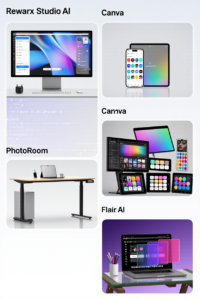 <span class="mrx-read-time-wrap mrx-read-time-before"><span class="mrx-read-time-badge">7 min read</span></span> Rewarx Studio AI Review 2026: Is This the Best AI Product Photography Tool for E-Commerce?
Rewarx Studio AI turns basic product photos into 4K, studio-quality e-commerce images using AI — here's what it actually does, who it's built for, and how it compares to PhotoRoom, Canva, and Flair AI.
View Details <span class="mrx-read-time-wrap mrx-read-time-before"><span class="mrx-read-time-badge">10 min read</span></span> Doba Review 2026: Is This AI-Powered Dropshipping Platform Worth It?
Doba pairs a 2M+ product catalog with a new AI assistant, Doba Pilot, and one-click listing to Walmart and TikTok Shop. We look past the homepage claims at what independent reviews and customer complaints actually say — plus how it stacks up against Spocket, Zendrop, SaleHoo, and AutoDS.
View Details <span class="mrx-read-time-wrap mrx-read-time-before"><span class="mrx-read-time-badge">8 min read</span></span> Lightsaber.com Review 2026: Is This Custom Saber Store Legit?
Lightsaber.com sells RGB and Neopixel dueling-grade sabers with app-based customization and a 1-year warranty. We look at what's verifiable versus self-reported before you buy — including why an old domain doesn't automatically mean a proven track record — and how it compares to established names like Ultrasabers, Sabertrio, and Vader's Vault.
View Details