Affiliate Revenue Optimizer: see which posts are leaving affiliate money behind
Affiliate Revenue Optimizer is a WordPress plugin that reads your published posts, counts how many people view them and click your affiliate links, and then tells you in plain English which articles to fix first. It flags missing calls to action, missing comparison tables and buying guides, affiliate links bunched in one spot and weak internal linking. It records its own page views and link clicks, so it needs no Google Analytics or other service.
What Affiliate Revenue Optimizer does
If you earn from affiliate links, some of your articles probably do far less than they could. The common reasons are simple: the article has one weak link, no comparison table, no buying guide, links all clustered in one place, or too few links to your other pages. They are easy to fix once you know which articles have them.
Affiliate Revenue Optimizer finds them for you. It adds a Revenue Optimizer menu to your WordPress admin with a dashboard that lists your posts, ranked by how much opportunity there is, with a short recommendation for each. It does not change your posts: you make the changes.
Who it is for
- Bloggers and review sites that earn from affiliate links in their posts.
- Site owners who want to know which posts to improve first, based on real traffic and real clicks.
- Anyone who wants this without connecting Google Analytics, Search Console or another tool.
Who it is not for
- People who want something that edits or rewrites their posts automatically: it only advises.
- Sites that track affiliate earnings or commissions: it counts clicks on your links, not sales or payouts.
- Sites whose content lives mainly in a page builder that does not store text in the normal post content: the scan reads the post content WordPress stores.
How it works
Two things happen in the background, and one thing on the dashboard.
It counts views
When a visitor opens a post, the plugin adds one view, at most once per visitor per post per day. Your own visits while logged in are left out by default.
It counts affiliate clicks
A tiny script spots clicks on links that look like affiliate links (marked rel="sponsored", or matching the patterns you set such as /go/ or ?tag=) and reports them to your own site.
It scans the content
For each post it checks the stored content for affiliate links and where they sit, calls to action such as "Check price", tables, buying-guide headings and links to your own pages.
It scores and explains
Each post gets a High, Medium or Low opportunity rating and a recommendation such as "add a comparison table after section 1". A gap only counts as High when the post also has real traffic behind it.
The patterns and phrases it looks for are all editable in Settings, so you can adapt it to how your links and headings are written.
Features
This is the complete list of what version 1.0.0 does. Nothing here is a roadmap item.
Opportunity dashboard
A table of your posts with views, affiliate clicks, click-through rate, a High, Medium or Low rating and a recommendation. The worst opportunities come first, and the top of the page counts how many posts are in each group.
Plain-English recommendations
For example: "This article receives significant traffic but only a 0.5% affiliate click-through rate. Recommended: add a second product CTA around section 2; add a comparison table after section 1." Up to three fixes are suggested per post.
Content checks
No affiliate links, only one link, no comparison table, no buying-guide section, fewer than two internal links, all links in one third of the article, and links with no call-to-action wording.
Built-in tracking
Counts views and affiliate-link clicks itself. Views are throttled to once per visitor per day. Click reports are throttled to one per visitor per post every ten seconds.
Click-through comparison
A post whose click-through rate is below your site's median is marked down. One above the median is not.
Editable detection rules
Set which post types to scan (posts, pages, products), the minimum views before a post can be flagged, and the lists of link patterns, call-to-action phrases, buying-guide phrases and comparison shortcodes.
Recognises Smart Buy tables
A comparison shortcode such as the Smart Buy Comparison shortcode counts as a comparison table, as does any real table in the post.
Rescan on demand
Results are saved for speed and refreshed when a post is saved. A Rescan now button refreshes them whenever you like.
Privacy-friendly
It stores only counts on each post. It does not store IP addresses or visitor details, and it sets no tracking cookie beyond the once-a-day view marker.
Clean uninstall
Deleting the plugin removes its settings and the view and click counts it added.
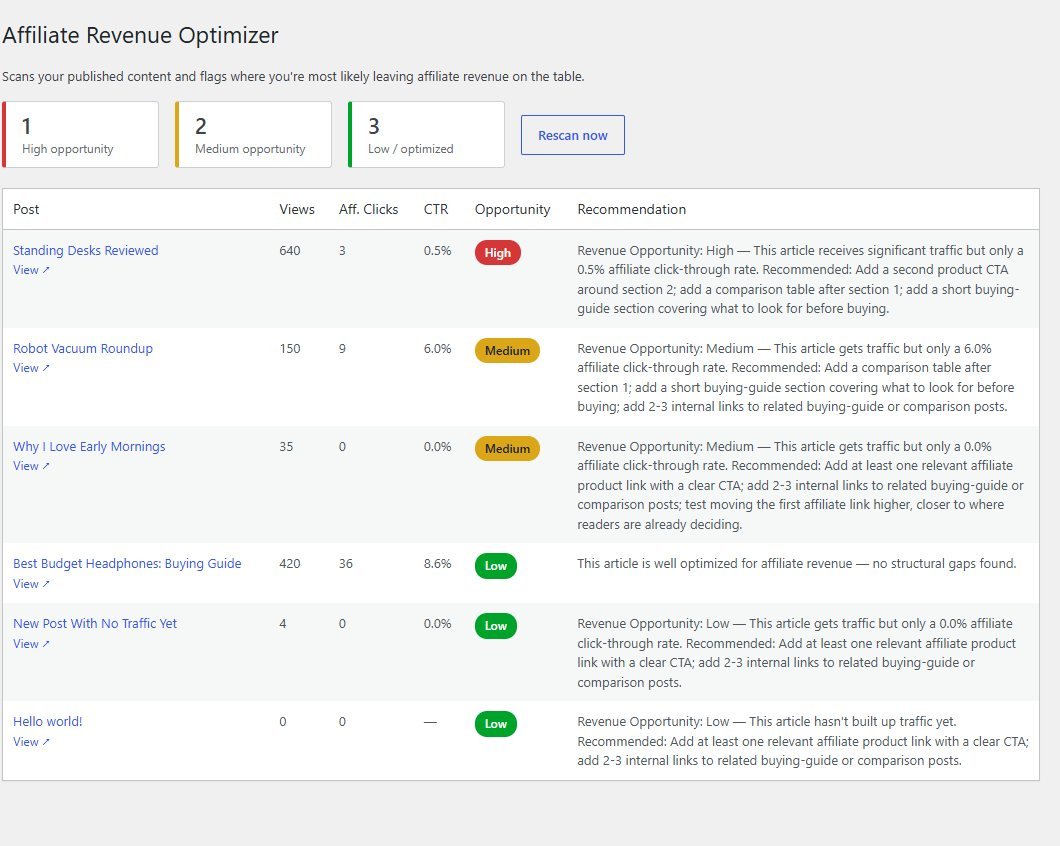
Walkthrough: from the dashboard to a list of fixes
These are real screenshots of the plugin running on a test WordPress site. The posts, views and clicks are sample data I made up to show how it behaves. Your own numbers will come from your own visitors.
1Open the dashboard
In the admin menu choose Revenue Optimizer. The summary at the top counts posts by opportunity. Below it, each post shows its views, affiliate clicks, click-through rate, rating and recommendation.
2Tune the rules
In Settings pick the post types to scan and the minimum views a post needs before it can be flagged. Add your own affiliate link patterns, call-to-action phrases and buying-guide headings.
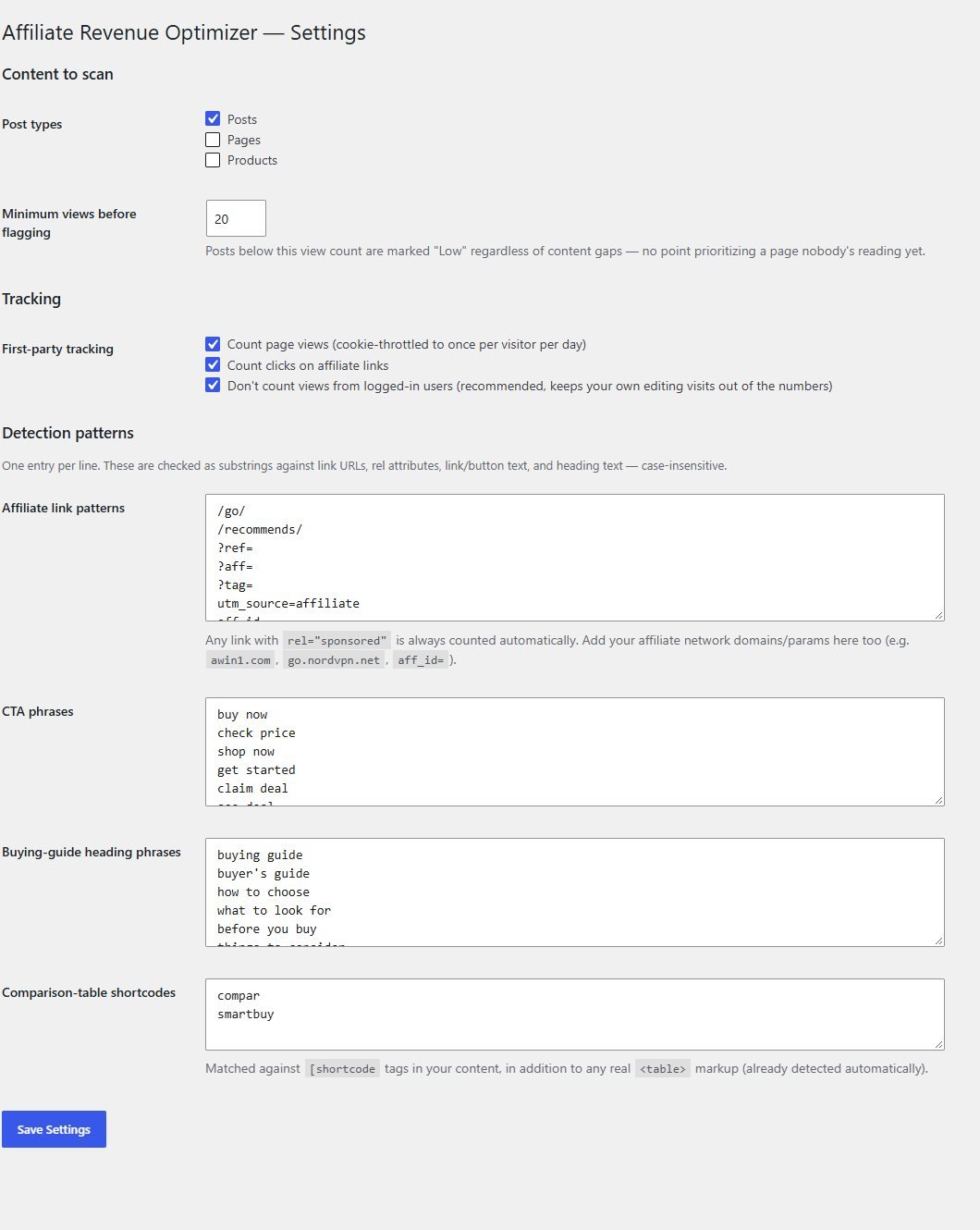
These steps use only features that are in the plugin.
Install and set up
Installing it is the same as any WordPress plugin. You upload a zip in the WordPress admin: no terminal is needed.
What you need
- A self-hosted WordPress site (WordPress.org software, not a WordPress.com free plan) running version 5.8 or newer
- PHP 7.4 or newer
- Permission to install plugins on your site
- Some affiliate links in your posts and some visitors, to give it something to measure
Running it on a real website
- Give it a few days of traffic before judging the click-through numbers: it only counts from the day you activate it
- If you use a caching plugin, check that page views are still being counted on cached pages
- Add your affiliate network's link patterns in Settings so every affiliate link is recognised
Upload the plugin
In WordPress go to Plugins, Add New, Upload Plugin, choose the zip you downloaded and press Install Now.
Activate it
Press Activate Plugin. A new Revenue Optimizer menu appears.
Check Settings
Open Revenue Optimizer, Settings and confirm the post types and affiliate link patterns suit your site.
Open the dashboard
Open Revenue Optimizer, Dashboard. As visitors arrive and click, the views, clicks and ratings fill in.
What you receive after buying
You receive the plugin as a single zip download from Selar, straight after payment.
In the download
- The plugin, ready to upload to WordPress
- A readme describing what it does and how to install it
- A clean uninstall routine
Not included
- Hosting or a WordPress site
- Installation or setup service
- Updates or new features are not promised. You get the current version, 1.0.0
- Affiliate programme accounts: you bring your own links
Limits and honest notes
Better you know now than discover it after you install. These come from the plugin's own code.
- It advises, it does not edit. You make the changes to your posts.
- Clicks, not sales. It counts clicks on your affiliate links. It cannot see conversions, commissions or earnings.
- Clicks are counted per post, not per link. You can see how often a post's links are clicked, but not which link.
- It scans the 300 most recent published posts of the types you choose.
- It reads the stored post content. Text added by shortcodes at display time, or kept outside the normal post content by some page builders, is not seen. A comparison shortcode is recognised by name only.
- The default phrases are English. You can replace them with phrases in your own language in Settings.
- It may flag posts that have no affiliate purpose. A post with no affiliate links and a little traffic is still rated, because the plugin cannot know what you intended. Use the recommendations as a guide.
- View counts are approximate. They are limited to one per visitor per day using a cookie. Visitors and crawlers that do not keep cookies can be counted on each visit.
- No reports by email and no data export. You view results on the dashboard.
Questions
Do I need Google Analytics?
No. The plugin counts its own views and affiliate clicks. It does not connect to Google Analytics, Search Console or any other service.
Will it change my posts?
No. It only reads them and shows recommendations on its dashboard. You decide what to change.
How does it know which links are affiliate links?
Any link with the rel attribute "sponsored" counts, plus any link whose address contains one of the patterns in Settings, such as /go/ or ?tag=. You can add your own network's patterns.
Why does a post with plenty of traffic say Medium rather than High?
High needs a low score and a good amount of traffic: at least twice the minimum views you set in Settings. A medium rating means there are gaps but fewer or less urgent ones.
Does it slow my site down?
It adds one small script on the posts it tracks and one counter update when someone views or clicks. The dashboard scan only runs in the admin.
Does it store visitors' personal data?
No. It stores only a view count and a click count on each post. The once-a-day view marker is a small cookie in the visitor's browser that holds no personal information.
Will it work with my page builder?
It reads the post content WordPress stores. If your page builder keeps the visible text in that content, it works. If it keeps it elsewhere, the plugin cannot see it.
Can I use it on more than one site?
The plugin file and readme state a GPLv2-or-later licence. Install it on the sites you own, and read the licence text if you plan to do anything beyond that.
Find the posts worth fixing first.
One payment, and a dashboard that tells you where your affiliate links are underperforming.
Buy Affiliate Revenue Optimizer · £39All our tools are listed on the tools catalogue. Free browser tools are in the tools hub.