Invoice Chaser: stop chasing late payments by hand
Invoice Chaser is a self-hosted web app that emails your clients about unpaid invoices for you. You enter an invoice once, with its due date. A small daily job then sends a friendly heads-up before it is due, a note on the day, and progressively firmer reminders at 3, 7 and 14 days overdue. Paid or cancelled invoices are left alone, and each reminder is only ever sent once. You buy the source code once and run it yourself.
What Invoice Chaser does
Chasing late invoices is awkward and easy to forget. Invoice Chaser takes the job over. It keeps a list of your clients and the invoices you are waiting to be paid for, and it works out each day which invoices are due a reminder.
It is not an invoice maker. You enter the invoice details you already issued elsewhere (client, what it was for, amount, due date) so Invoice Chaser knows what to chase. When the client pays, you press Mark paid and the reminders stop.
Who it is for
- Freelancers, agencies and small service businesses that already send invoices and want polite, automatic follow-ups.
- Anyone who is comfortable running a small Node.js site and one scheduled job (a cron job or Windows Task Scheduler).
- Developers who want a clean reminder engine they can adapt for a client.
Who it is not for
- People who want a ready-made website to sign up to: this is software you install and host yourself.
- Anyone who needs the app to create or send the invoice itself, take online payments or integrate with accounting software: none of that is built in.
- Anyone who needs reminders by SMS or WhatsApp: it sends email only.
How the reminders work
A daily job looks at every unpaid invoice and sends only the reminder that matches today's date. The default schedule has five stages.
3 days before the due date
A friendly heads-up: your invoice for the amount is due on the date. No action needed if it is already scheduled.
On the due date
A short note saying the invoice is due today.
3 and 7 days overdue
A firmer reminder asking the client to confirm the status of payment.
14 days overdue
A final notice, asking the client to pay as soon as possible, and to ignore it and tell you if they have already paid.
Each stage is sent once per invoice, then recorded in the invoice's reminder history. You can switch any stage off in Settings. Reminders only go out when the daily job runs: if the job misses a day, the stage for that day is skipped, not sent late.
Features
This is the complete list of what version 1.0.1 does. Nothing here is a roadmap item.
Client list
Add clients with a name and an email address. Reminders go to that address.
Invoice tracking
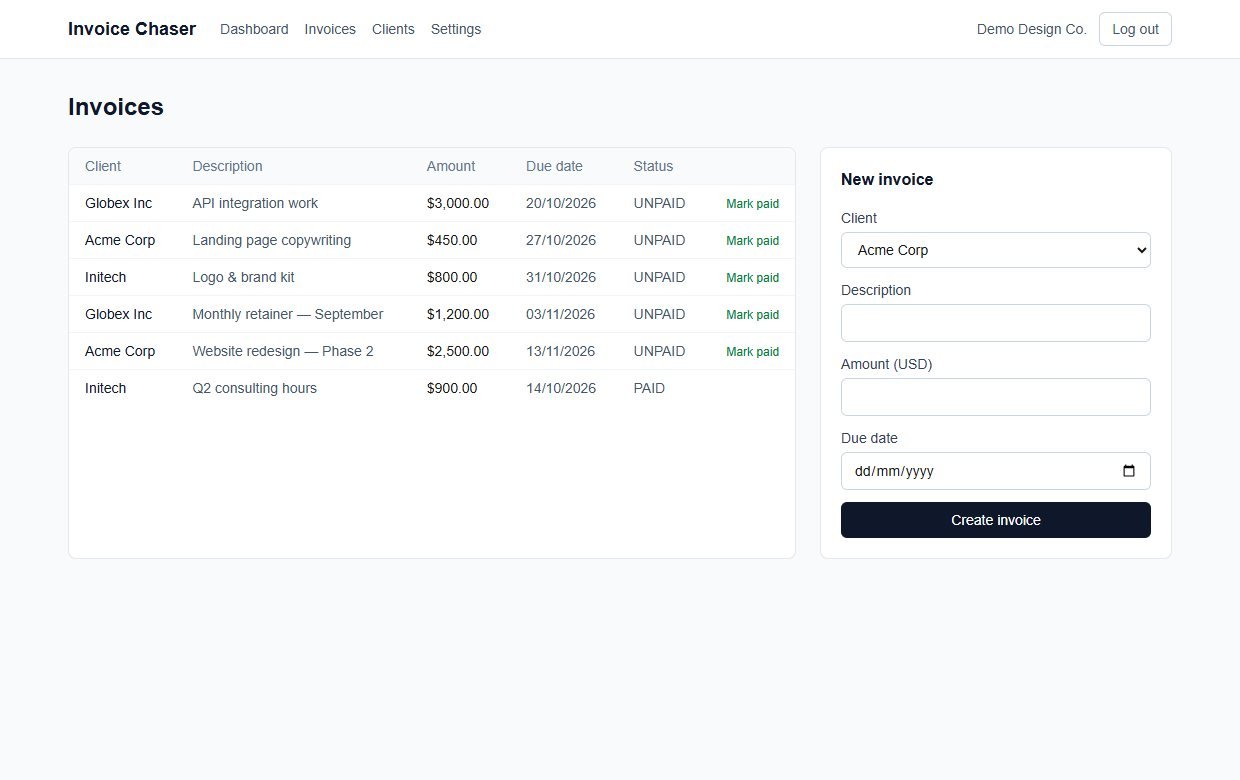
Add an invoice with a client, a description, an amount and a due date. Mark it paid, or cancel it, with one click.
Five reminder stages
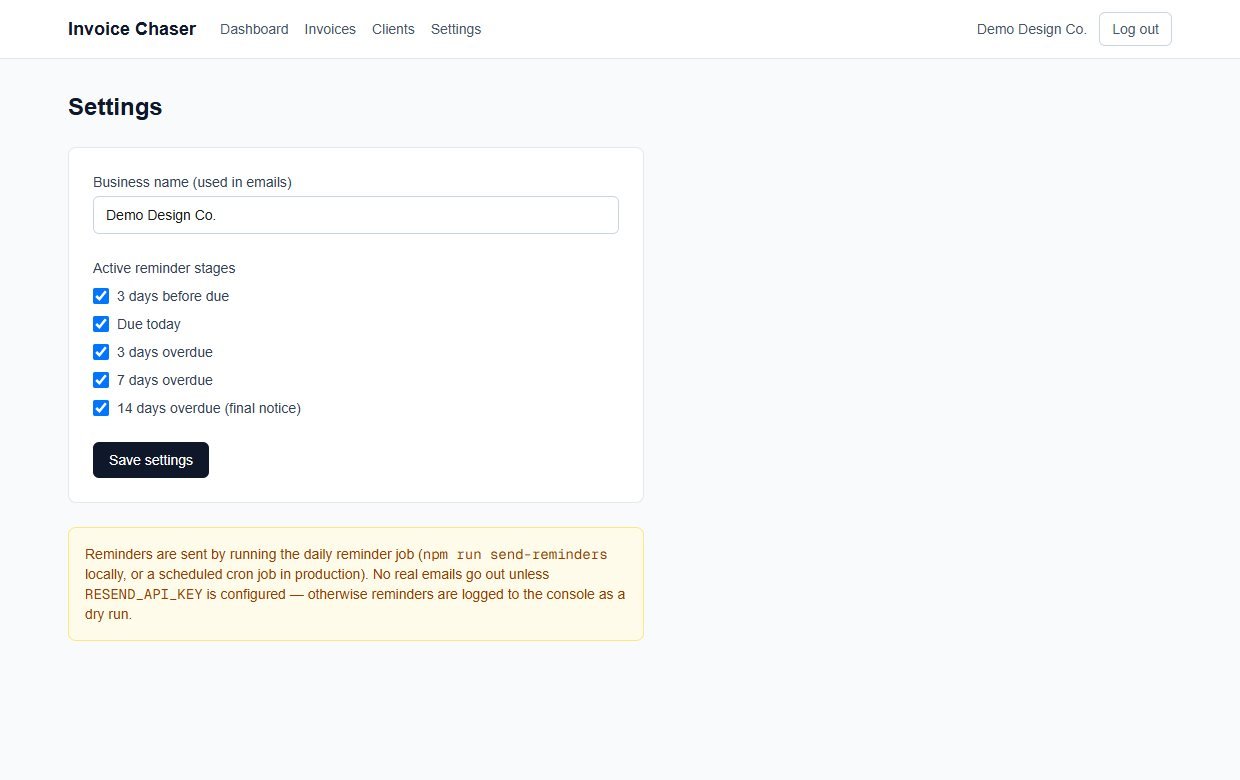
3 days before due, due today, 3 days overdue, 7 days overdue and 14 days overdue (final notice). Turn any stage on or off in Settings.
Three tones
Friendly before and on the due date, firmer at 3 and 7 days overdue, and a final notice at 14 days.
Never sent twice
Each stage is recorded per invoice, so running the job again the same day, or twice by mistake, does not send duplicates.
Paid and cancelled invoices are skipped
Only unpaid invoices are chased.
Reminder history
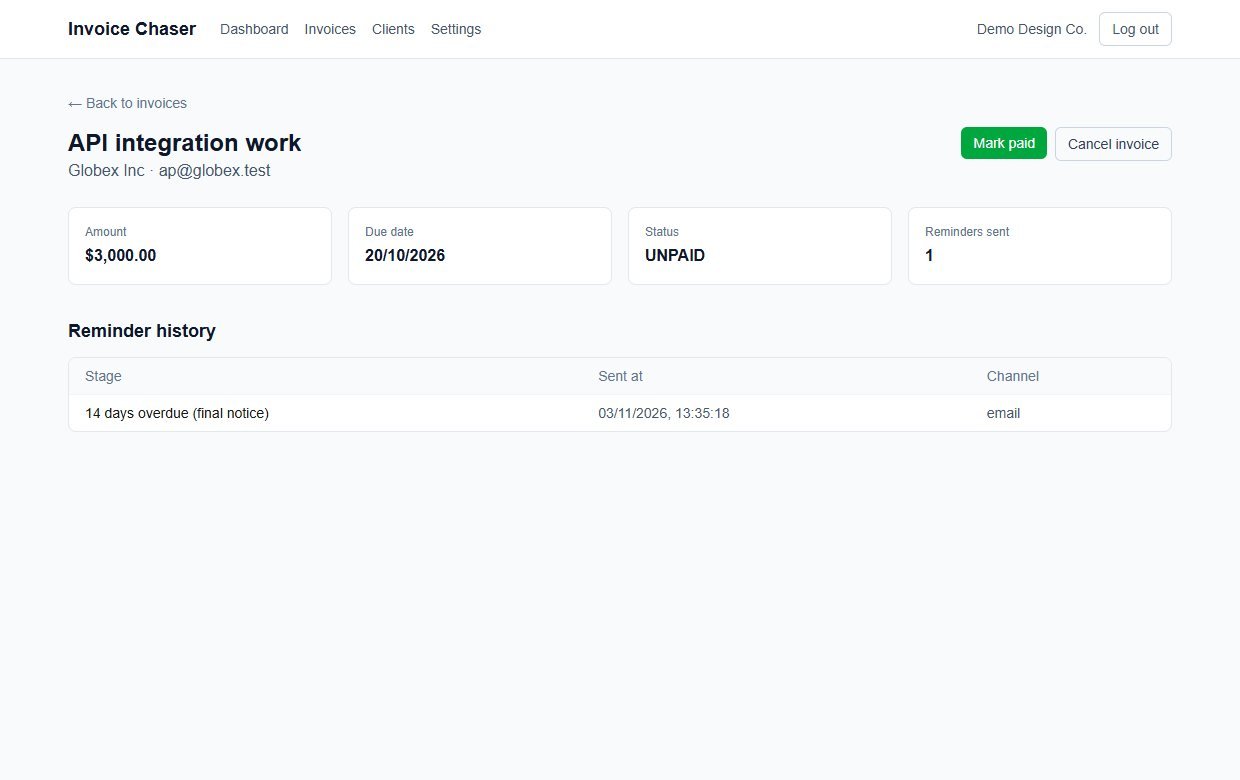
Every invoice's page lists the reminders that were sent, with the stage, the time and the channel.
Dashboard
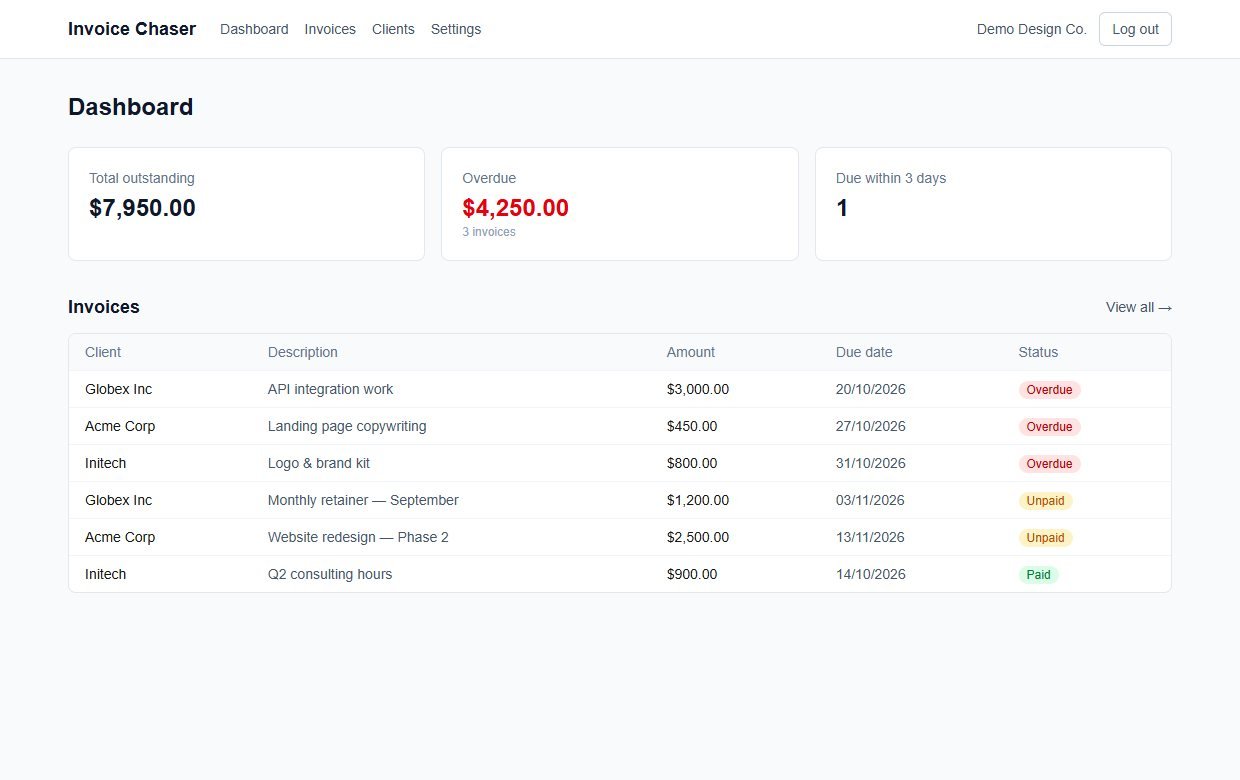
Total outstanding, the overdue amount with its invoice count, how many invoices fall due within 3 days, and a list of invoices with Overdue, Unpaid and Paid badges.
Real email through Resend
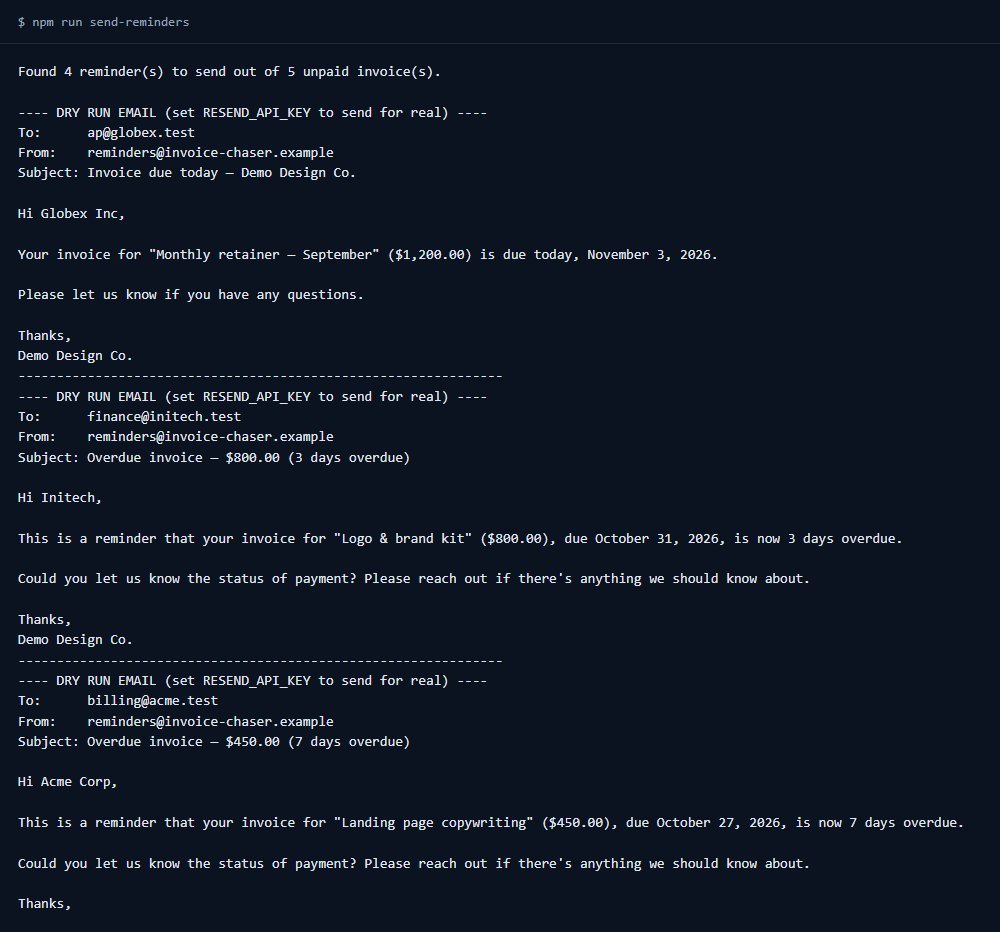
Add a Resend API key and a from-address and the reminders are really sent. Without a key it runs in a safe dry-run mode that only prints the emails, so you can test everything first.
Full source code
Next.js, React, TypeScript, Tailwind and Prisma with SQLite by default. The reminder rules are in one small, readable file.
Walkthrough: from an overdue invoice to a sent reminder
These are real screenshots from Invoice Chaser running with the sample data it ships with (a fictional design studio and three fictional clients). No real emails were sent: this copy ran in dry-run mode.
1See what is outstanding
The dashboard shows the total still unpaid, how much of it is overdue and how many invoices fall due in the next 3 days. The invoice list is sorted with the most overdue first.
2Choose which reminders you want
In Settings, set the business name used in the emails and tick the stages you want. The note on the page explains that reminders are sent by the daily job.
3Run the daily job
The job (npm run send-reminders) found 4 reminders due today among 5 unpaid invoices and printed each email. With a Resend key set, the same emails would be sent for real. This is the job's actual output, in dry-run mode.
4Check the history
Open an invoice and the Reminder history table shows which stages went out and when. Here the final notice was recorded for an invoice 14 days overdue. Use Mark paid when the client pays, and the reminders stop.
These steps use only features that are in the product.
Install and set up
Invoice Chaser is a standard Next.js project plus one scheduled script. If you have deployed a Node.js site and set up a cron job before, this will feel familiar. If you have not, ask a developer or hosting support to do the install once: after that, using it needs no technical skill.
What you need
- Node.js 20.9 or newer (the project was built and tested on Node 24) and npm
- A place to run a Node.js web app, ideally on a domain or subdomain you control
- A way to run one command every day: a cron job, a hosting scheduler or Windows Task Scheduler
- For real emails: a free or paid Resend account, with a verified sending domain, and its API key
Running it on a real website
- Run
npm run buildandnpm run starton a normal Node server, with the SQLite file kept on a disk that survives restarts - Schedule
npm run send-remindersto run once every day. Running it more than once a day is safe, but a day it does not run is skipped - Set
RESEND_API_KEYandEMAIL_FROMin.envto send real emails. Until you do, nothing is sent - On serverless hosts such as Vercel there is no permanent disk, so switch the Prisma database to Postgres as the README describes
Unzip and install
Unzip the download, open a terminal in the folder and install the packages.
Set your settings
Copy the example settings file. Set SESSION_SECRET to a long random string. Leave the Resend lines commented out for now to stay in dry-run mode.
Create the database
Apply the schema.
Create your account
The seed script creates the first account, plus sample clients and invoices. Edit the email, password and business name in prisma/seed.ts first, then run it. Then delete the sample clients and invoices in the app.
Try it, then schedule it
Start the app, then run the reminder job by hand to see the dry-run emails. When you are happy, add your Resend key and schedule the job daily.
Before you go live: the seed creates a demo account (demo@example.com) with a sample password. The sign-in form is not pre-filled, but anyone who reads this page could try the sample password, so change the seeded account in prisma/seed.ts before you run the seed. Public sign-up is closed by default (ALLOW_SIGNUP in .env) so strangers cannot register and send email through your account.
What you receive after buying
You receive the complete source code as a single zip download from Selar, straight after payment.
In the download
- The full Invoice Chaser source code (Next.js, React, TypeScript, Tailwind)
- The reminder script for your daily job, the reminder rules and the three email wordings
- The Prisma database schema, the first migration and a seed script with sample data
- A README with setup steps, the project structure and the known limits
- An example settings file (
.env.example) and the package list - No node_modules folder: you install the packages yourself with npm
Not included
- Web hosting, a domain name, a scheduler or an installation service
- A Resend account or any email-sending credit: you bring your own
- A hosted copy to sign in to: you run your own
- Updates or new features are not promised. You get the current version, 1.0.1
- A single-buyer licence file (LICENSE.txt) is included: you may run and modify the code for your own business or hosted clients, but not resell or share the source
Limits and honest notes
Better you know now than discover it after you start. These come from the project's own README and code.
- You must schedule the daily job yourself. The app does not run reminders on its own. If the job does not run on a given day, that day's reminder is skipped, not sent late.
- No emails are sent until you add a Resend key. Until then the job only prints the emails it would send. Resend needs a verified domain to send from your address.
- Email only. No SMS, WhatsApp or in-app messages.
- Fixed schedule and wording. The five stages and the three email texts are fixed. You can switch stages off but not change the days or edit the wording in the app. A developer can edit the email file.
- It does not make or send invoices. You enter the details of invoices you issued elsewhere. The email does not attach the invoice or include a payment link.
- US dollars in the app. The invoice form has no currency field, so invoices are created in US dollars. The currency is stored in the database and the code can display others.
- Reminders go to the email you typed. A wrong client address means the reminder goes to the wrong place. The app does not check addresses.
- Sign-up is closed by default. The seed script creates your first account. You can switch on public sign-up with
ALLOW_SIGNUP, but then every account can send email through your key. There is no subscription billing, email verification or password reset. - The public landing page is generic. It still has "Sign up free" buttons and marketing text that a developer should change for your use.
- SQLite by default. Fine for one business on a normal server. Switch to Postgres for serverless hosting, as the README describes.
Questions
Does it really email my clients?
Yes, once you add a Resend API key and a from-address. Until then it runs in a dry-run mode that only prints the emails, so you can test everything safely first.
Do I need to be a programmer?
You need to be comfortable installing a Node.js project, running a few terminal commands once and setting up one daily scheduled command. After that, adding clients and invoices is point-and-click.
Can I change the wording of the emails?
Not from inside the app. The three email styles are in one small file (email-templates.ts) that a developer can edit in a few minutes.
Can I change when reminders are sent?
You can switch each of the five stages on or off in Settings. The days themselves are fixed in the code.
Will a client get the same reminder twice?
No. Each stage is recorded for each invoice and is never sent again, even if you run the job several times.
Does it create invoices for me?
No. You add the invoice details you already issued elsewhere. If you want to create and print invoices, see InvoiceForge, which is a separate product.
What happens when a client pays?
Press Mark paid on the invoice. It is then skipped by the reminder job.
Can several businesses use one copy?
The data model keeps each account's clients and invoices separate, and public sign-up can be switched on, but billing, email verification and password reset are not built. Treat it as a tool for one business unless you add those.
Let the reminders do the chasing.
One payment, full source code, and your clients and invoices stay on your own server.
Buy Invoice Chaser · £99All our tools are listed on the tools catalogue. Free browser tools are in the tools hub.