Live Chat: a click-to-chat bubble for WhatsApp, email and phone, with business hours
Live Chat is a WordPress plugin that adds a floating chat bubble to your site. A visitor taps it and chooses how to reach you: WhatsApp with your message already typed, email, or a phone call. The greeting changes to an away message outside the opening hours you set, and a small dashboard counts how often each button is tapped. It is not a chat inbox: the conversation happens in WhatsApp, in their email program or on the phone.
What Live Chat / Click-to-Chat Bubble does
Many customers would rather message you on WhatsApp than fill in a contact form. This plugin puts a round chat button in the corner of your site. Pressing it opens a small panel with a friendly greeting and a button for each way to reach you that you have set up.
It does not run a chat system on your site. The WhatsApp button opens WhatsApp (on the phone or on the web) with your number and a message already typed. The email button opens the visitor's email program, and the call button dials your number on a phone.
Who it is for
- Small shops, service businesses and freelancers who take enquiries on WhatsApp, email or phone.
- Anyone who wants a chat button without paying a monthly chat-service fee or loading another company's script.
- Businesses with set opening hours who want the greeting to say when they are away.
Who it is not for
- People who want a live chat window with a shared inbox, typing indicators or chat history on their own site: the conversations happen in other apps.
- Anyone who wants a chatbot or automatic replies: there are none.
- Businesses that need different hours for different departments: there is one set of hours.
How it works
A button, a small panel and a counter.
A bubble on every page
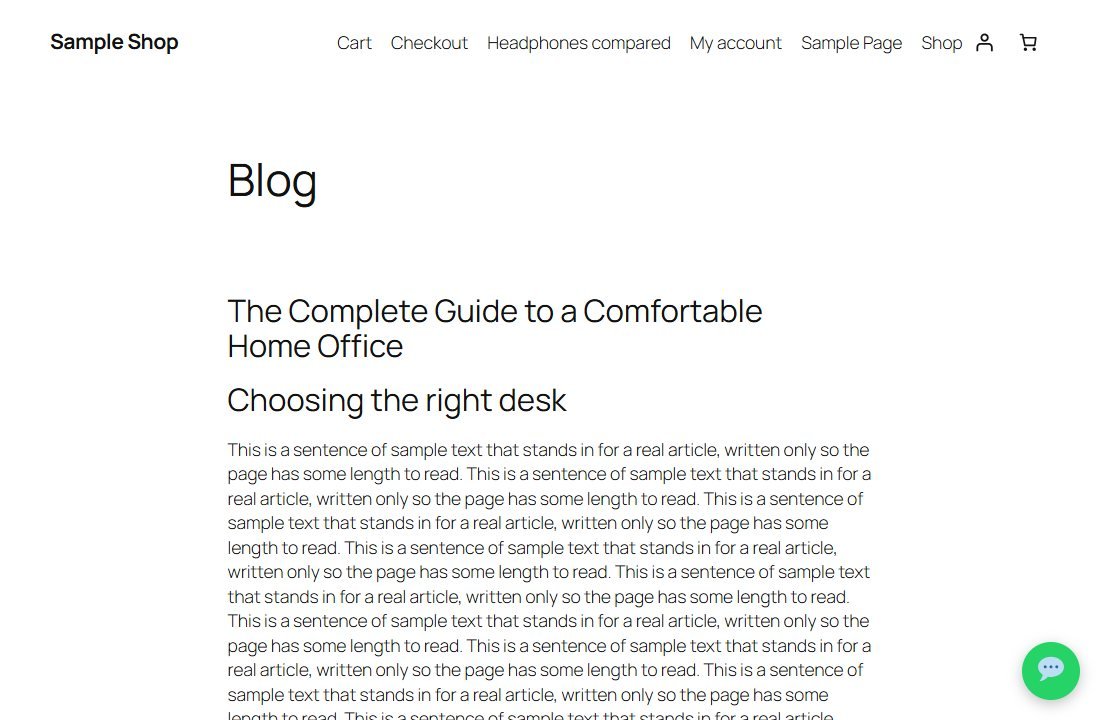
A round bubble sits in the bottom-right or bottom-left corner, in the colour you choose.
A greeting that fits the time
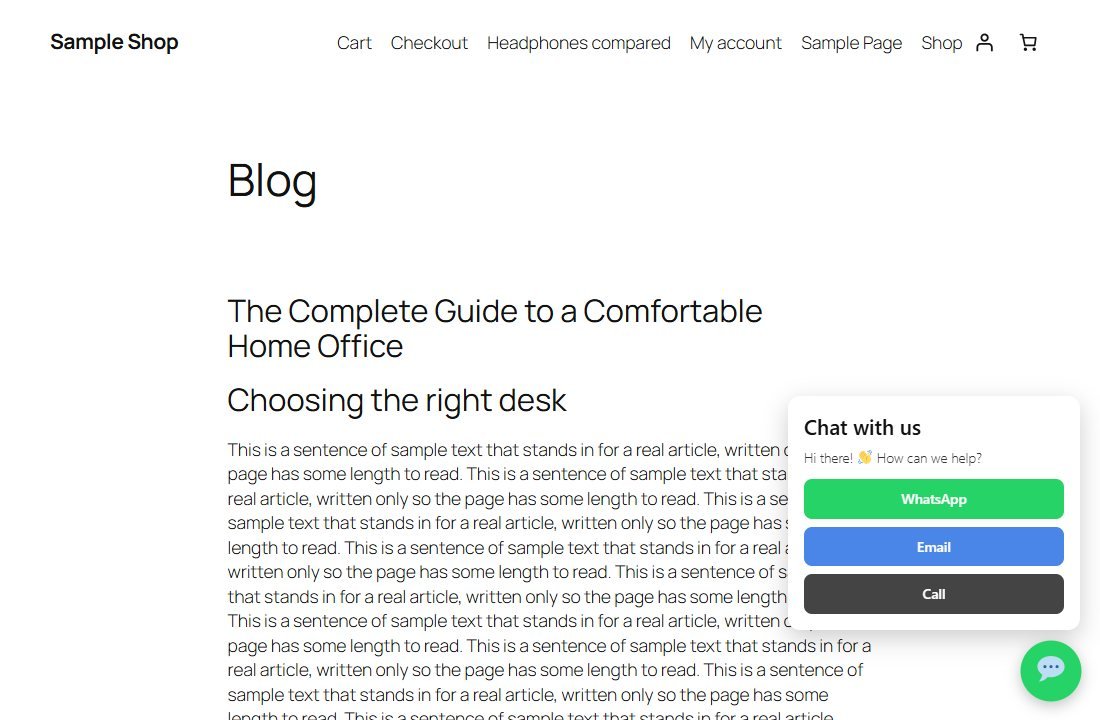
When the visitor opens it, they see your greeting during opening hours, or your away message outside them. The hours, days and time zone are yours to set.
They choose how to reach you
One button each for WhatsApp, email and phone. Only the ones you have filled in appear.
You see what people use
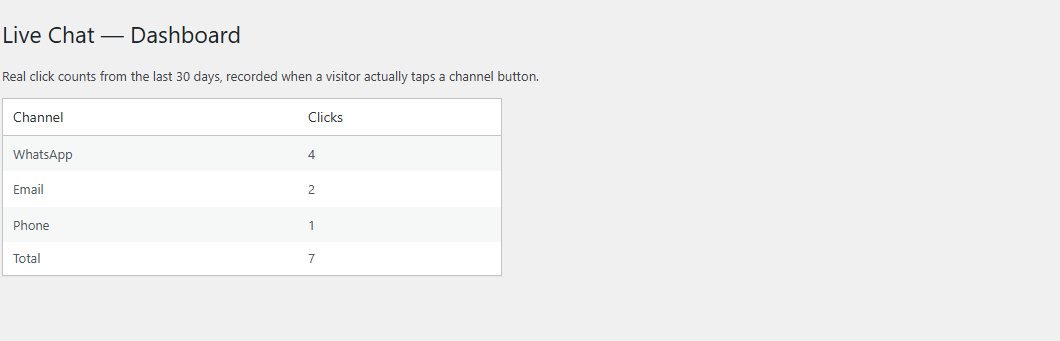
Each tap on a button is counted. The dashboard shows the totals for the last 30 days by channel.
The bubble only appears when at least one channel (WhatsApp number, email or phone) is set.
Features
This is the complete list of what version 1.0.0 does. Nothing here is a roadmap item.
WhatsApp button
Opens WhatsApp with your number and your pre-written message already in the box.
Email and phone buttons
The email button opens a new email addressed to you. The call button dials your number. The email address is lightly obscured from spam bots.
Business-hours greeting
Set the opening hour, closing hour, open days and time zone. Outside them, the panel shows your away message and a "We're away" heading. An overnight shift (for example 8 pm to 6 am) works too.
Your own wording
The greeting, the away message and the WhatsApp message are all editable.
Position and colour
Bottom right or bottom left, in any colour.
Hide on mobile
A switch to hide the bubble on small screens.
Click counts
A dashboard of taps by channel over the last 30 days. It records the channel, the page it was tapped on and the time, not who tapped.
Self-contained
No third-party chat service, no outside script and no monthly fee.
Clean uninstall
Deleting the plugin removes its settings and its click table.
Walkthrough: from the bubble to the click count
These are real screenshots of the plugin running on a test WordPress site, with example contact details.
1The bubble
A round button sits in the corner of every page.
2The panel
Tapping it opens a greeting and a button for each channel you have set up.
3See which channel people use
In Live Chat, Dashboard the plugin counts each tap by channel over the last 30 days. These numbers come from a few test taps.
4Set it up in one screen
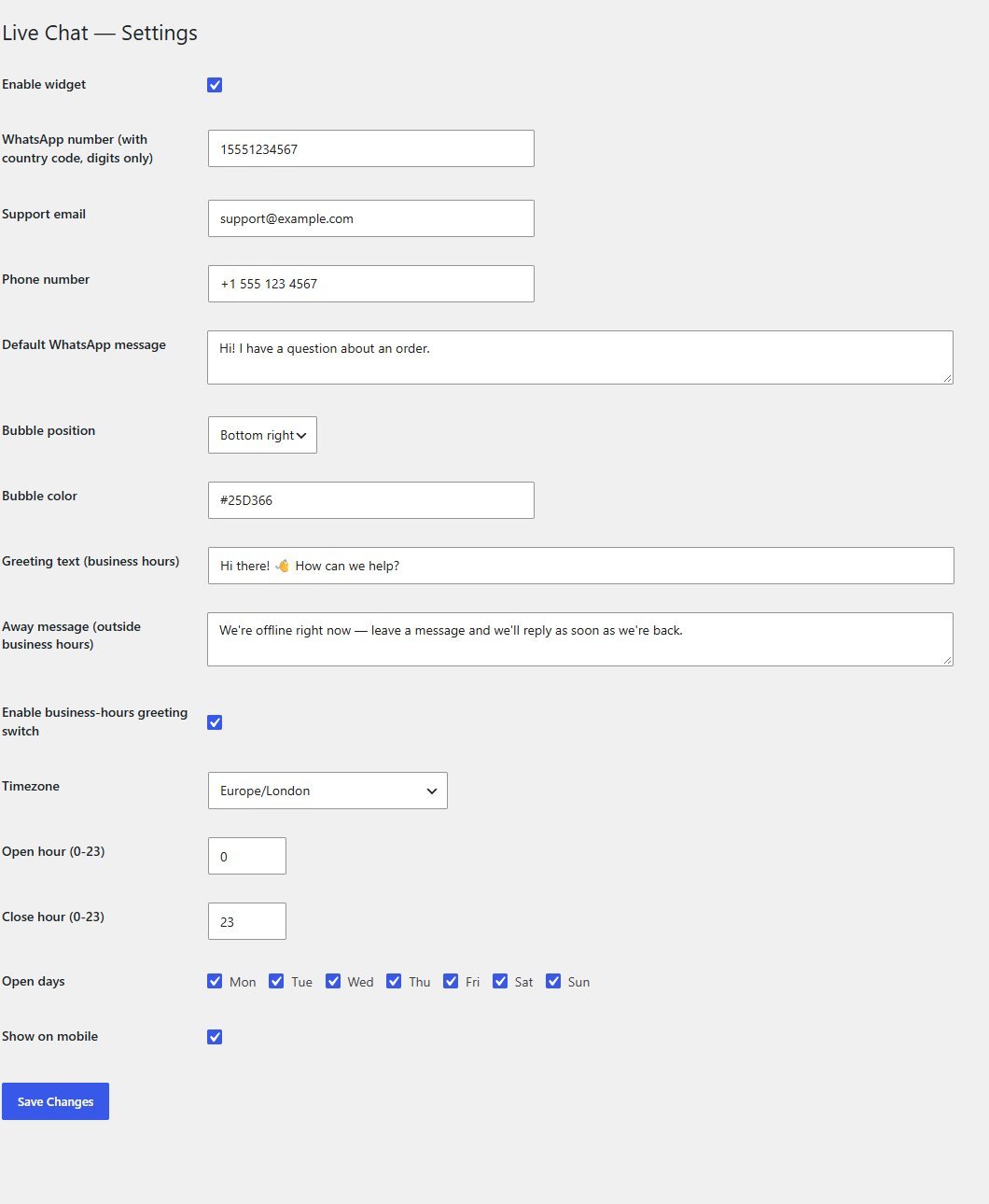
In Live Chat, Settings add your WhatsApp number, email and phone, write your messages, choose the position and colour, and set your opening hours.
These steps use only features that are in the plugin.
Install and set up
Installing it is the same as any WordPress plugin: upload a zip in the WordPress admin. Nothing shows until you add at least one way to be reached.
What you need
- A self-hosted WordPress site (WordPress.org software), kept up to date
- A current, supported version of PHP
- Permission to install plugins on your site
- A WhatsApp number, an email address or a phone number to show
Running it on a real website
- Enter the WhatsApp number with the country code and digits only
- Set your time zone and opening hours so the greeting is right
- Make sure someone actually answers WhatsApp when the greeting says you are open
Upload and activate
In WordPress go to Plugins, Add New, Upload Plugin, choose the zip, install it and press Activate. A Live Chat menu appears.
Add your contact details
Open Live Chat, Settings. Enter your WhatsApp number, email and phone, and write the greeting and message.
Set your hours
Choose your time zone, opening and closing hours and open days, and write an away message.
Check your site
Open your site in a fresh window. The bubble appears and the panel shows the greeting for the current time.
What you receive after buying
You receive the plugin as a single zip download from Selar, straight after payment.
In the download
- The plugin, ready to upload to WordPress
- A clean uninstall routine
Not included
- Hosting or a WordPress site
- A WhatsApp account or phone line: you use your own
- Installation or setup service
- Updates or new features are not promised. You get the current version, 1.0.0
Limits and honest notes
Better you know now than discover it after you install. These come from the plugin's own code.
- It is not a live chat inbox. There is no chat window on your site, no history and no team inbox. Conversations happen in WhatsApp, email or by phone.
- No chatbot and no automatic replies. You answer the messages yourself.
- One set of opening hours. The hours change the greeting, but the buttons still work when you are away.
- Hours are whole hours. You choose the opening and closing hour (0 to 23), not minutes.
- Click counts show taps, not conversations. A tap means a visitor pressed a button. It does not tell you whether they sent a message.
- Counts cover the last 30 days and are grouped by channel. There is no per-page breakdown or export.
- It shows on every page of the site. There is no page-by-page control.
- English wording for the button names and headings out of the box, though every text can be translated.
Questions
Is this a live chat system?
No. It is a click-to-chat bubble: it opens WhatsApp, email or a phone call. The conversation happens there, not on your website.
Do I need a WhatsApp Business account?
No. It opens a normal WhatsApp conversation with the number you provide. Use whichever WhatsApp account you answer from.
Can I hide it outside business hours?
It stays visible, but the greeting changes to your away message so visitors know when to expect a reply.
Does it track my visitors?
It counts taps on its buttons, with the channel, the page and the time. It does not store who tapped.
Can I change the colour and corner?
Yes. Pick bottom right or bottom left and any colour.
Does it work on phones?
Yes. You can also choose to hide it on small screens.
Do I need an account with a chat service?
No. Nothing outside your own site is involved, apart from WhatsApp itself when a visitor taps that button.
Can I use only WhatsApp?
Yes. Only the channels you fill in are shown.
Let customers reach you in one tap.
One payment, a floating chat bubble, and a count of which button people press.
Buy Live Chat / Click-to-Chat Bubble · £19All our tools are listed on the tools catalogue. Free browser tools are in the tools hub.