InvoiceForge: print-ready invoices with no monthly bill
InvoiceForge is a self-hosted web app for freelancers and small service businesses. Keep your clients in one place, build line-item invoices with tax worked out automatically, track each one from draft to sent to paid, and print or save a clean invoice as a PDF from your browser. You buy the source code once and run it yourself: no subscription and no per-invoice fee.
What InvoiceForge does
Most invoicing services charge every month for what is, at heart, a list of clients, a table of line items and a total. InvoiceForge gives you that toolkit as software you install on your own server, so the client list and every invoice stay in a database you control.
You add a client, create an invoice for them, add as many line items as you need (each with its own quantity, price and tax percentage), and the subtotal, tax and total are calculated for you. When you are ready, you mark it as sent, open the print view and save it as a PDF or print it. When the client pays, you mark it as paid.
Who it is for
- Freelancers, consultants and small agencies who send a handful to a few dozen invoices a month.
- Anyone who wants to stop paying a monthly fee for basic invoicing and is happy to host a small Node.js site.
- Developers and agencies who want a clean invoicing starting point they can extend for a client.
Who it is not for
- People who want a ready-made website to sign up to: this is software you install and host yourself.
- Teams that need several users, roles or separate customer accounts: it has one business account.
- Anyone who needs emailing of invoices, online card payments, automatic reminders, recurring invoices, quotes or a company logo on the invoice: none of those are built in.
How an invoice moves through InvoiceForge
Each invoice has one of three statuses, and you move it forward yourself. There are no hidden automations.
Draft
A new invoice starts as a draft. Edit and Delete stay available at every stage, including after an invoice is sent or paid, so be careful with paid ones.
Sent
Press Mark sent after you have given the invoice to your client. It now counts towards Outstanding on the dashboard.
Paid
When the money arrives, press Mark paid. The amount moves from Outstanding to Paid on the dashboard.
Print or save as PDF
Open the print view at any stage. It shows only the invoice, with no menus, and the browser's Print dialog can save it as a PDF.
The PDF comes from your browser's own print-to-PDF feature. The invoice is not emailed for you: you send the PDF yourself.
Features
This is the complete list of what version 1.0.1 does. Nothing here is a roadmap item.
Client list
Add clients with a name, email, address and private notes. Edit or delete them from the Clients page, and see how many invoices each one has.
Line-item invoices
Any number of lines, each with a description, quantity, unit price and tax percentage. A running subtotal, tax and total update as you type.
Automatic tax and totals
Tax is calculated per line, so you can mix tax rates on one invoice (for example 20% on services and 0% on expenses). Money is held in whole pence/cents, so there are no rounding drifts.
Three currencies
Choose US dollars, British pounds or euros for each invoice. The printed invoice shows the matching symbol.
Sequential invoice numbers
Invoices are numbered INV-0001, INV-0002 and so on for your account.
Draft / sent / paid tracking
Move an invoice through its statuses with one button, and filter the invoice list by status.
Dashboard
Outstanding (sent, unpaid), Paid and the number of drafts, plus your five most recent invoices.
Clean print view
A dedicated invoice page with your business name, the client's details, the line items, subtotal, tax, total due and your notes, styled for paper and for PDF.
Login-protected
Email and password login (passwords stored hashed with bcrypt, session in a signed httpOnly cookie). The invoice and client pages need you to be signed in.
Full source code
Next.js, React, TypeScript, Tailwind and Prisma with SQLite by default. The code is small and readable.
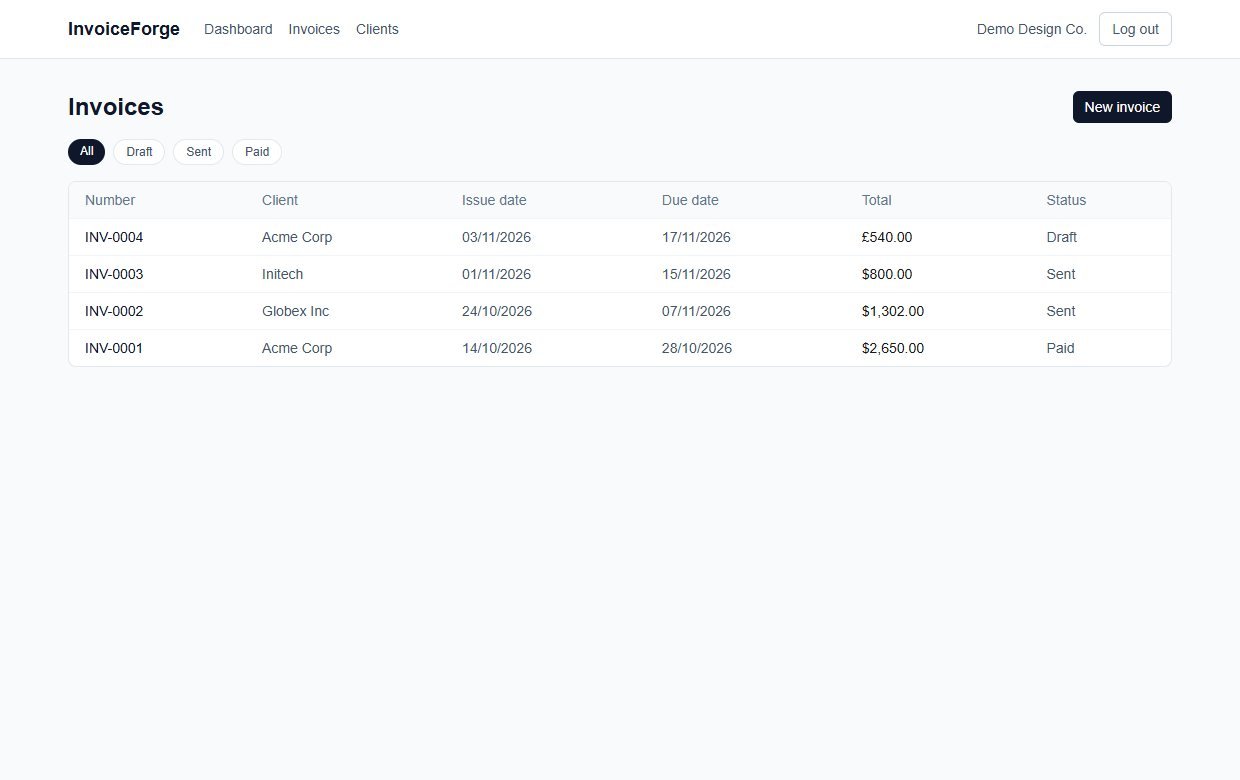
Walkthrough: create an invoice and print it
These are real screenshots from InvoiceForge running with the sample data it ships with (a fictional design studio and three fictional clients).
1Start from the dashboard
After you sign in, the dashboard shows what is outstanding, what has been paid, how many drafts you have and your most recent invoices.
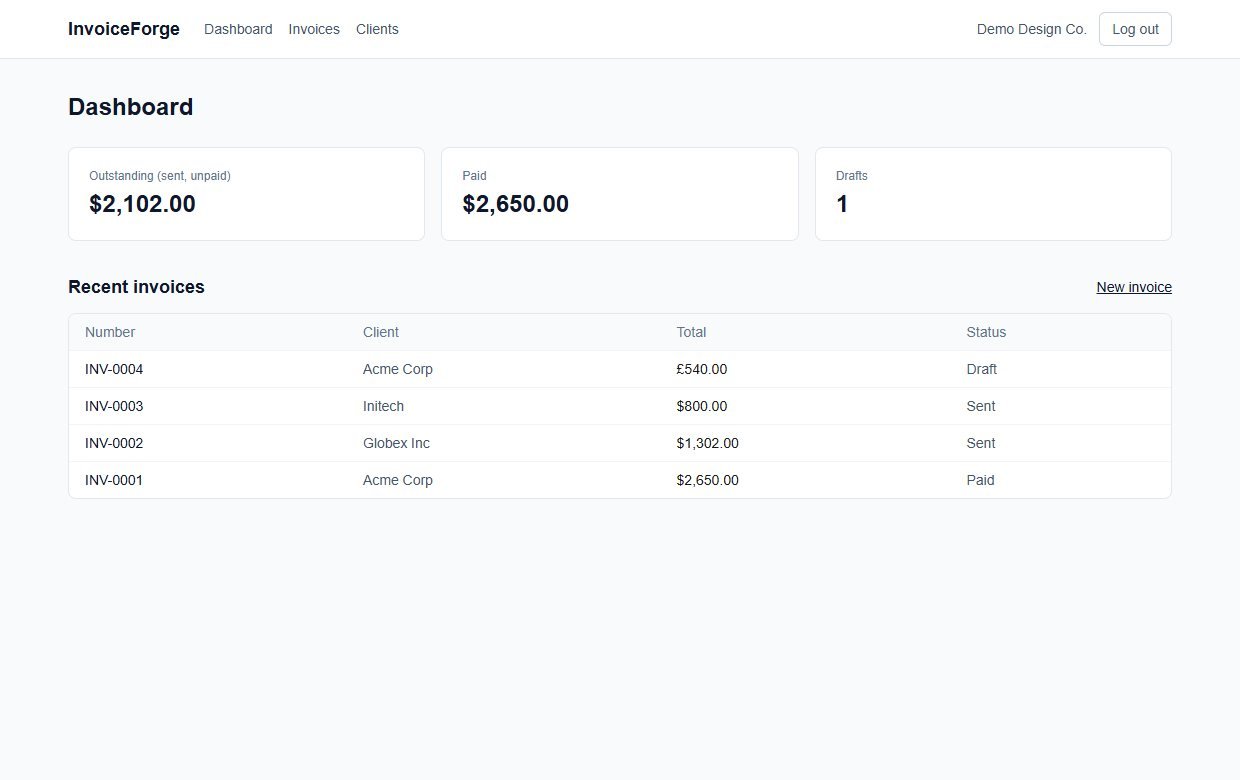
2Keep your clients in one place
The Clients page lists everyone you invoice with their email and number of invoices. Add a new client with the form on the same page.
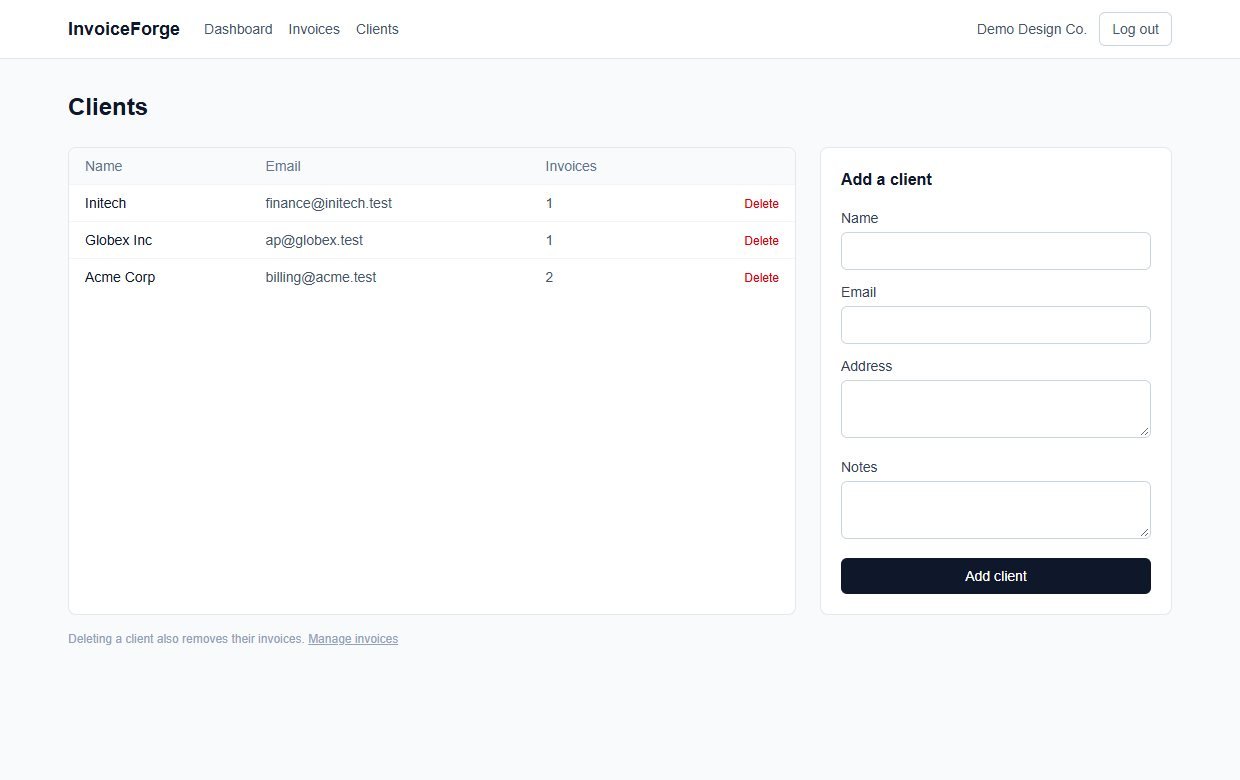
3Build the invoice
Choose the client and the currency, set the dates, add notes such as payment terms, then add your line items. This one is in pounds with 20% tax on both lines.
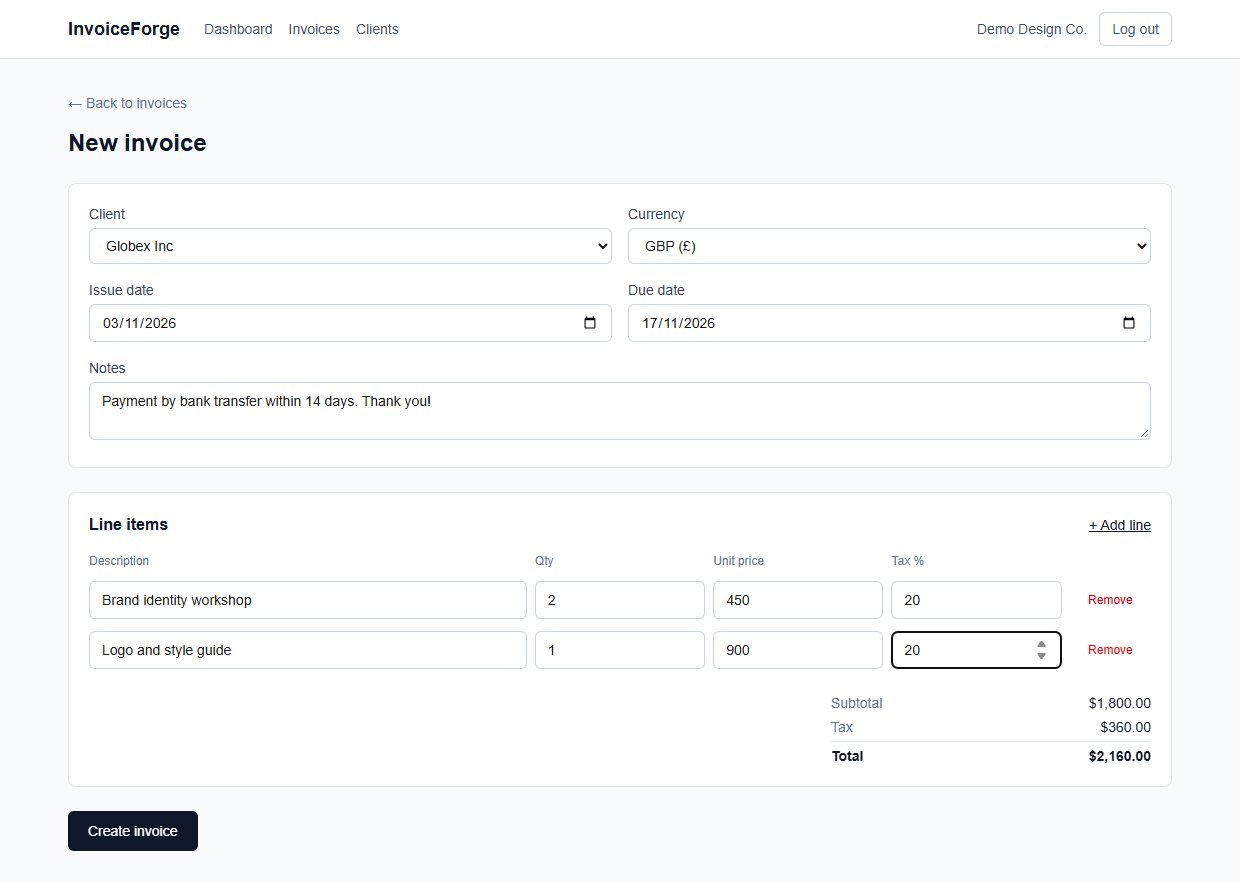
4Review it and send it
The invoice page shows the finished invoice with its status and the buttons for what you can do next: print, edit, mark as sent, or delete.
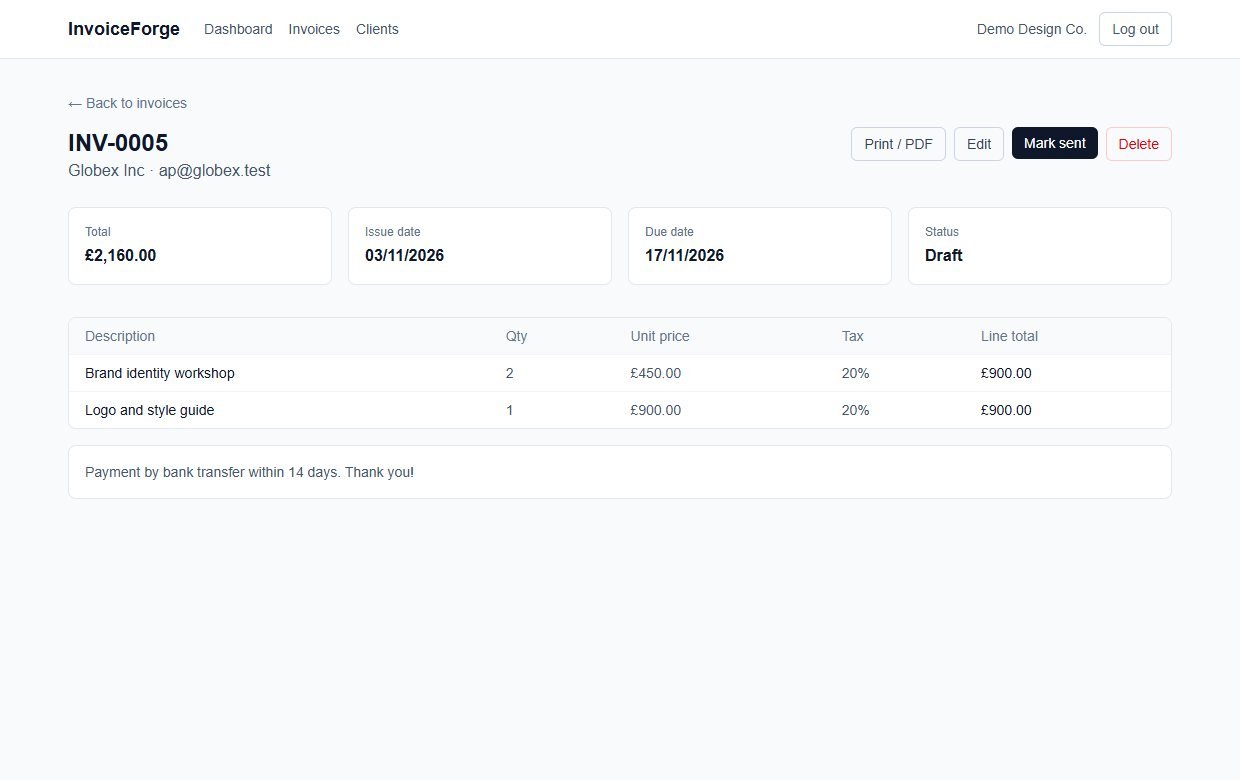
5Mark it sent, then paid
After you send it to your client, press Mark sent. When they pay, the button changes to Mark paid.
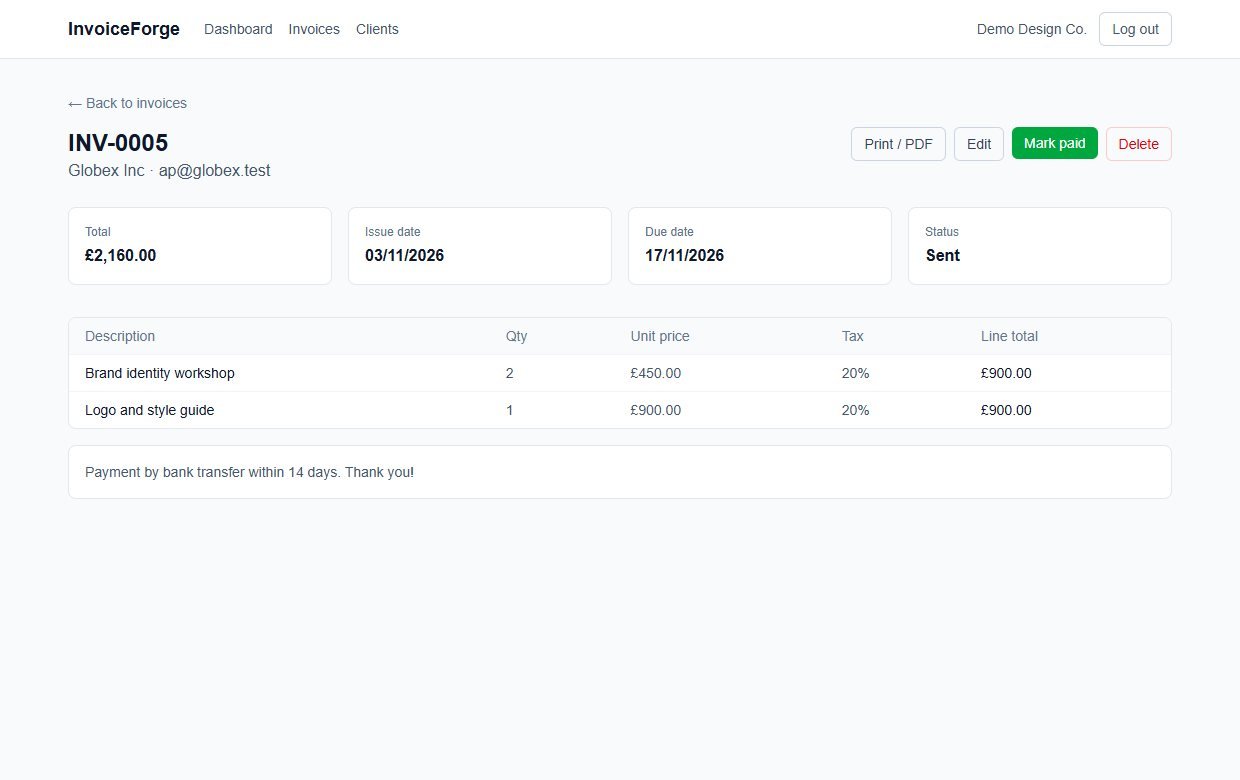
6Print or save as PDF
The print view is the invoice and nothing else. Press Print / Save as PDF and choose Save as PDF in your browser's print window.
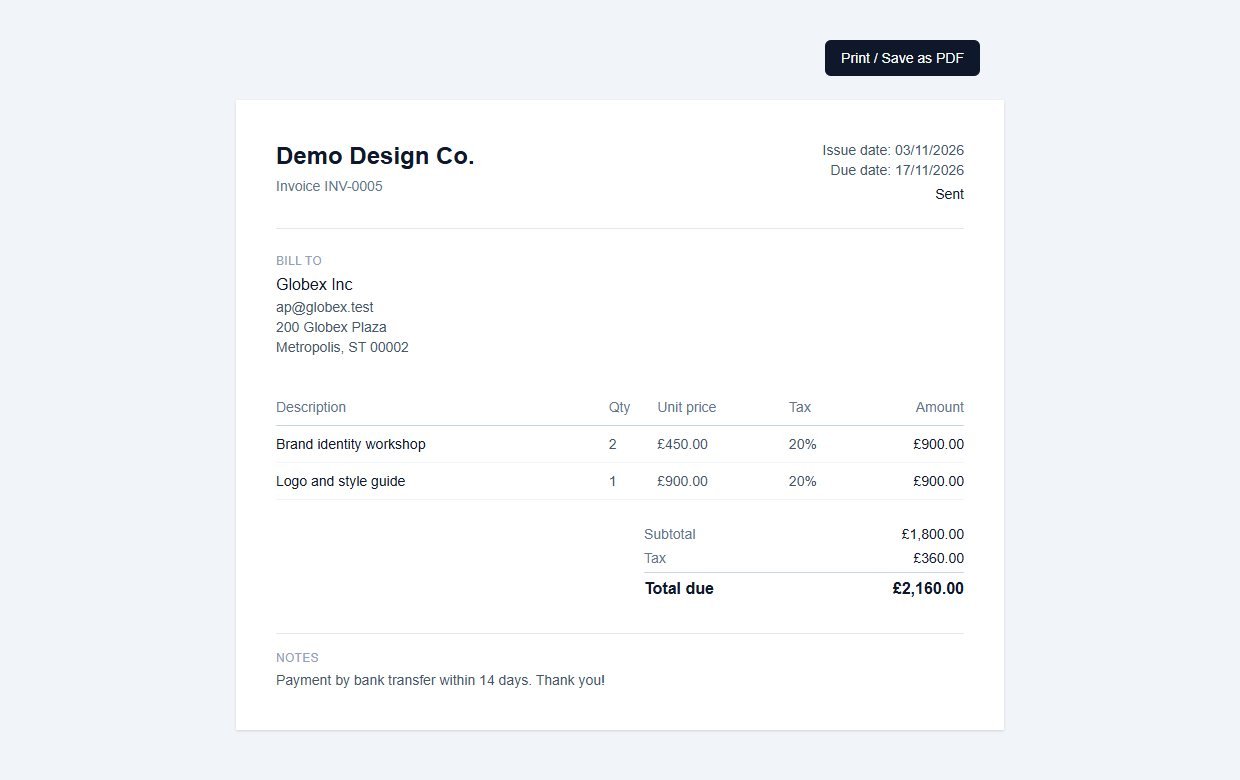
These steps use only features that are in the product.
Install and set up
InvoiceForge is a standard Next.js project. If you have deployed a Node.js site before, this will feel familiar. If you have not, ask a developer or hosting support to do the install once: after that, using it needs no technical skill.
What you need
- Node.js 20.9 or newer (the project was built and tested on Node 24) and npm
- A place to run a Node.js web app, ideally on a domain or subdomain you control
- A terminal to run a handful of commands
- A long random text string for the session secret
Running it on a real website
- Run
npm run buildandnpm run starton a normal Node server, with the SQLite file kept on a disk that survives restarts - On serverless hosts such as Vercel there is no permanent disk, so switch the Prisma database to Postgres as the README describes
- Serve it over HTTPS so logins are encrypted
- Back up the database file: it holds all your clients and invoices
Unzip and install
Unzip the download, open a terminal in the folder and install the packages.
Set your settings
Create a settings file with a database location and a long random SESSION_SECRET. An example file is included.
Create the database
Apply the schema.
Create your account
There is no sign-up page. The seed script creates the account, plus three sample clients and four sample invoices. Edit the email, password and business name in prisma/seed.ts first, then run it. The seed wipes and recreates its data, so run it once on a fresh database, then delete the sample clients and invoices.
Start it
Run it locally to try it, or build and start it on your server.
Before you go live: the seed creates a demo account (demo@example.com) with a sample password. The sign-in form is not pre-filled, but anyone who reads this page could try the sample password, so change the seeded account in prisma/seed.ts before you run the seed.
What you receive after buying
You receive the complete source code as a single zip download from Selar, straight after payment.
In the download
- The full InvoiceForge source code (Next.js, React, TypeScript, Tailwind)
- The Prisma database schema, the first migration and a seed script with sample data
- A README with setup steps, the project structure and the known limits
- An example settings file (
.env.example) and the package list - No node_modules folder: you install the packages yourself with npm
Not included
- Web hosting, a domain name or an installation service
- A hosted copy to sign in to: you run your own
- Updates or new features are not promised. You get the current version, 1.0.1
- A single-buyer licence file (LICENSE.txt) is included: you may run and modify the code for your own business or hosted clients, but not resell or share the source
Limits and honest notes
Better you know now than discover it after you start. These come from the project's own README and code.
- Invoices are not emailed. You print or save the PDF and send it yourself. There are no automatic reminders.
- PDF via your browser. There is no server-generated PDF or Download PDF button; the README explains how a developer could add one.
- One business account. There is no sign-up, no multiple users and no password-change screen: the account comes from the seed script.
- Only the business name appears at the top of the invoice. There is no logo, no business address or tax number field and no bank-details field. Put payment details in the invoice notes.
- Three currencies, no conversion. Each invoice is in USD, GBP or EUR. The dashboard totals and the running totals while you edit an invoice are shown with a dollar sign whatever the invoice currency, and they add all currencies together, so they only make sense if you invoice in one currency. The printed invoice itself always shows the right symbol.
- Statuses are manual. There is no overdue status, no partial payment and no payment history.
- Invoice numbers come from a count. Deleting an old invoice can let a number be reused. The README describes the fix for businesses with strict bookkeeping rules.
- Deleting a client deletes their invoices. The database is set to remove a client's invoices with the client, so export or print anything you need first.
- No quotes, recurring invoices or expense tracking. It does invoices and clients only.
- SQLite by default. That is fine for one business on a normal server. For serverless hosting, switch to Postgres as the README describes.
Questions
Do I need to be a programmer?
You need to be comfortable installing a Node.js project and running a few terminal commands once. After it is installed, creating clients and invoices is point-and-click.
Can I get a PDF?
Yes, through your browser. Open the print view and choose Print, then Save as PDF. There is no built-in server-side PDF or emailing.
Can I use pounds or euros?
Yes. Each invoice can be in US dollars, British pounds or euros. Remember the dashboard totals add everything together and show a dollar sign, so they are best used if you invoice in one currency.
Can I add my logo or bank details?
Not as separate fields. You can put payment details in the invoice notes. A developer can extend the print page, which is a single small file.
Does it email my clients?
No. It does not send email at all. You send the PDF yourself. If you want automatic payment reminders, see Invoice Chaser, which is a separate product.
Can several people sign in?
No. It has one business account, created by the seed script.
Can I move to a bigger database later?
Yes. It uses Prisma, so you can change the database provider to Postgres by editing the schema file and the connection string, as the README describes.
Is there a limit on invoices or clients?
InvoiceForge does not count or limit them and there are no per-invoice fees. Capacity depends on the server you run it on.
Own your invoicing. Pay once.
One payment, full source code, and your clients and invoices live on your own server.
Buy InvoiceForge · £39All our tools are listed on the tools catalogue. Free browser tools are in the tools hub.