Social Proof Badges: real view counts and a "Popular this week" mark, never invented
Social Proof Badges is a WordPress plugin that shows an honest view count (for example "50 views this week") and a "Popular this week" mark next to your post titles. The numbers are your own site's, counted by the plugin on your own server. Nothing is made up, rounded up or padded, and a count that is too small to be impressive is simply not shown.
What Social Proof Badges does
Readers trust what other people are reading. A small badge beside a title, such as "50 views this week" or "Popular this week", can nudge them to read on. Many tools fake this with random numbers. This plugin does the opposite: it counts real page views itself and shows only what the log says.
Everything runs inside your WordPress site. There is no account, no API key, no third-party script and no outside request. If an item has not earned a badge yet, it shows none.
Who it is for
- Blogs, magazines and review sites that want to show which articles are popular.
- Small shops that want a trustworthy "popular" signal on products without fake numbers.
- Site owners who care about privacy and do not want another third-party widget.
Who it is not for
- People who want impressive numbers on a brand-new site: by design nothing is shown until the real count passes the minimum you set.
- Sites that need unique-visitor analytics: it counts page loads, not people.
- Anyone who wants to place a badge by hand with a shortcode or switch it on for single posts only: the settings apply to whole post types.
How it works
A tiny script records each page view, and the plugin turns the log into two kinds of badge.
It counts views
When a page loads, the plugin's script records one view for that item for that day. Each visitor's browser is only counted once per few hours (6 by default), so refreshing does not inflate the figure.
The count badge
Next to the title it shows the total over the window you choose (today, the last 7 days or the last 30 days), for example "👀 50 views this week". It appears only once the item passes your minimum, 10 views by default.
The trending badge
Items in the top few by views over the last 7 days get a "🔥 Popular this week" mark. You choose how many items qualify, and whether they are ranked across the whole site or within their own category.
Cache-safe by design
The count is filled in by the reader's browser after the page loads, so a page served from a full-page cache still shows the current number.
You can show the count, the trending mark, or both, before or after the title, and change the wording of each.
Features
This is the complete list of what version 1.1 does. Nothing here is a roadmap item.
Live view count
A badge beside the post title, over today, the last 7 days or the last 30 days. Its wording is yours to set, for example "%d views this week".
Trending badge
A mark on the top N items by views over the last 7 days (N from 1 to 20), ranked across the whole site or within each item's own category.
Minimum before showing
A count only appears once the real number passes the minimum you set (1 to 1,000). Below it, no count is shown at all.
Never fabricated
No base figure, no scaling, no randomising. What the log says is what is shown.
Works with page caching
The server prints an empty badge and the reader's browser fills in the current count, so it stays correct behind LiteSpeed and other full-page caches.
No cookies, no personal data
The repeat-view throttle uses the reader's own browser storage. A view is stored as a post, a date and a count: no IP address, no user ID, no cookie.
Post types you choose
Posts, pages, products (if WooCommerce is active) or any other public post type.
Before or after the title
Choose where the badges sit, inside the heading beside the title. They are only added to the title of the item being read, never to menus or sidebars.
Settings with live preview
The settings screen shows a preview that updates as you type, so you see the badge before you save.
Top 10 dashboard
At the bottom of the settings screen: the ten most-viewed items of the last 7 days, from the same data the trending badge uses.
Clean switch-off
Badges are added when a page is shown and nothing is written into your posts, so turning the plugin off leaves every post exactly as it was. On deleting the plugin you can choose to remove its settings and view log.
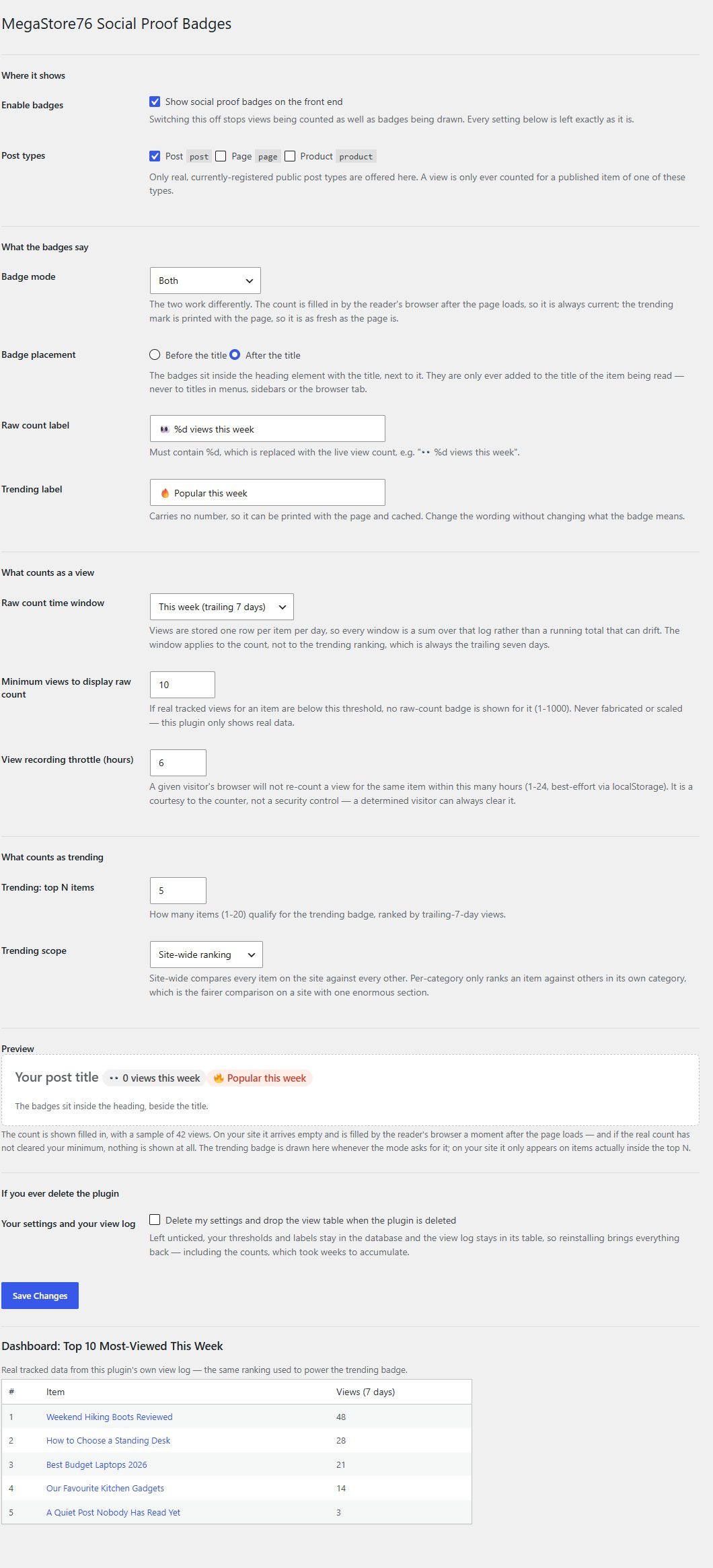
Walkthrough: from settings to badges on a post
These are real screenshots of the plugin running on a test WordPress site with made-up sample posts and view counts.
1Choose what to show
In Settings, Social Proof pick the post types, the badge mode, the wording, the time window, the minimum views and how many items count as trending. The preview at the bottom shows the badges. The top-10 table below it shows the real data behind them.
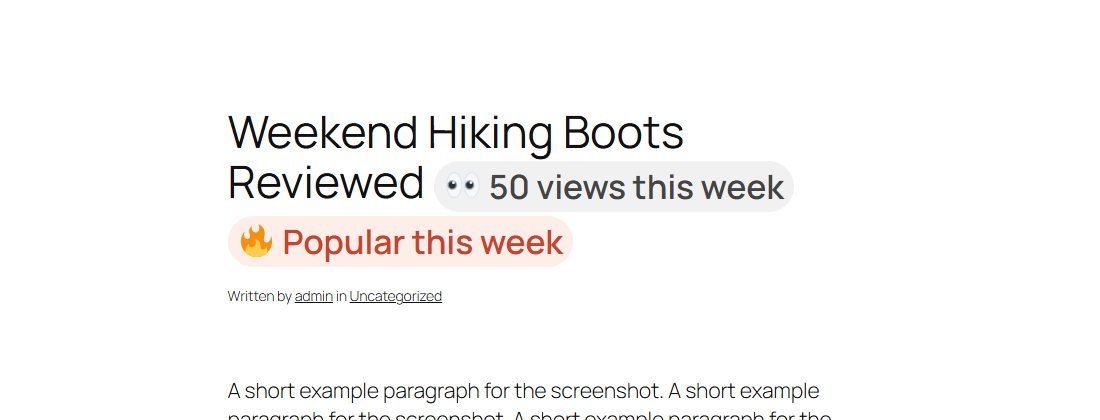
2Readers see the badges
On a post, the count and the trending mark sit beside the title. This post has 50 real views this week and is the most viewed on the test site.
3Small counts stay hidden
A post below your minimum shows no count at all. This one has only a handful of views, so it shows no count. It still carries the trending mark here because the test site has only five posts and every one is in the top five. On a real site you would set the number of trending items to suit your size.

These steps use only features that are in the plugin.
Install and set up
Installing it is the same as any WordPress plugin: upload a zip in the WordPress admin. With the default settings it starts counting and showing badges straight away.
What you need
- A self-hosted WordPress site (WordPress.org software) running version 6.0 or newer
- PHP 7.4 or newer
- Permission to install plugins on your site
- Visitors: badges only appear for items with real traffic
Running it on a real website
- Give it a few days of traffic: it only counts from the day you activate it
- Set the number of trending items to suit the size of your site
- If you change the time window, update the wording of the count label to match
Upload and activate
In WordPress go to Plugins, Add New, Upload Plugin, choose the zip, install it and press Activate. The plugin creates its own view table.
Check the settings
Open Settings, Social Proof and pick your post types, the minimum views and the wording. The preview updates as you type.
Visit a post
View a post on your site. As real visits arrive, counts appear on the items that pass your minimum.
What you receive after buying
You receive the plugin as a single zip download from Selar, straight after payment.
In the download
- The plugin, ready to upload to WordPress
- A readme describing the settings, the limits and the upgrade path
- A licence file (the terms are attached separately at the point of sale)
Not included
- Hosting or a WordPress site
- Translations: the plugin is in English, with every text ready to translate
- Installation or setup service
- Updates or new features are not promised. You get the current version, 1.1
Limits and honest notes
Better you know now than discover it after you install. These come from the plugin's own readme and code.
- A view is a page load, not a person. One reader on three devices counts three times.
- Readers with JavaScript switched off are not counted, and never see the count badge. The trending mark is unaffected.
- The repeat-view limit is best effort. It uses the reader's own browser storage, so clearing site data or using a private window counts again.
- The trending mark can be as old as your page cache. The ranking is saved for 15 minutes and the mark is printed into the page. The count is always current.
- On a small site many items can be "trending". It marks the top N by views, with no minimum, so with few posts they can all qualify. Lower N to suit.
- Settings apply to whole post types. There is no per-post switch and no shortcode to place a badge by hand.
- Per-category ranking uses an item's first category only.
- Badges sit in the title. They show on the title of the item being read, not in lists or archives.
- The view log is never trimmed. It adds one row per item per day. That is small for most sites, and the plugin has no tool to prune it.
- English only out of the box, though every text can be translated.
Questions
Are the numbers real?
Yes. They come from the plugin's own view log on your server. Nothing is seeded, scaled or randomised, and a count under your minimum is not shown.
Does it use cookies or send data to another service?
No cookies, and no outside requests at all. The repeat-view limit uses the browser's own storage, and a stored view is just a post, a date and a number.
Will it work if I use page caching?
Yes. The count is filled in by the browser after the page loads, so cached pages still show the current number. The trending mark is printed with the page, so it is as fresh as the cache.
Does it work with WooCommerce products?
Yes, if WooCommerce is active the product type is offered alongside your own post types. It counts product page views, not sales.
Why do I see no badge on some posts?
Because they have not earned one. A count appears only once the real number passes the minimum, and a trending mark only on the top N items.
Can I change the wording or language?
Yes. Both labels are free text, and the count label must contain %d where the number goes.
Does it change my posts?
No. Badges are added when the page is shown, so switching the plugin off leaves every post as written.
Can I put a badge anywhere with a shortcode?
No. Badges appear in the title of the item being read, for the post types you choose.
Show what is popular. Only what is true.
One payment, and honest badges counted on your own site.
Buy Social Proof Badges · £24All our tools are listed on the tools catalogue. Free browser tools are in the tools hub.