Smart Search: a search box that answers as visitors type
Smart Search is a WordPress plugin that adds a search button to every page of your site. It opens a search box over the page, and as the visitor types it shows matching posts, pages and WooCommerce products together, each with its picture, a line of text where the word matched, a label saying what it is and, for products, the price. It runs on your own site, with no outside service, and you can also place the same box inside a page with a shortcode.
What Smart Search does
Many WordPress themes search only post titles, and show the result on a separate page after a reload. A shop needs people to find a product by what it is, and to find it fast. Smart Search answers as the visitor types, in a panel that opens over the page they are already on.
It searches your posts, pages and WooCommerce products in one go. Each result is labelled Post, Page or Product, shows a thumbnail, a short snippet of text around the word the visitor typed, and the current price for products.
Who it is for
- Online shops using WooCommerce that want shoppers to find products by their description, not only their title.
- Blogs and magazines that want better on-site search than the theme gives them.
- Site owners who want search without a paid search service or another third-party script.
Who it is not for
- Sites that need typo correction, "did you mean" suggestions or synonyms: it searches for what was typed.
- Very large catalogues that need a dedicated search index: each search is a normal database lookup.
- Anyone who wants search analytics or a list of what visitors searched for: nothing is stored.
How it works
A small script on your pages talks to a search route on your own site.
A button on every page
A round search button appears in the corner you choose. Pressing it opens the search panel over the page.
The visitor types
From two characters on, and a moment after they pause typing (a third of a second), the script asks your site for matches.
Your site answers
WordPress looks through the published posts, pages and products you allow and returns up to the number of results you set, with a snippet and, for products, the live price.
The visitor clicks through
Results appear in the panel with pictures and labels. Escape, clicking the background or the close button closes the panel.
Only published items are ever returned, so drafts, scheduled posts and private pages cannot appear in results.
Features
This is the complete list of what version 1.1 does. Nothing here is a roadmap item.
Search as you type
Results appear after the visitor has typed two characters and paused for 300 milliseconds.
Posts, pages and products together
Choose which content types to search. WooCommerce products have their own on/off switch on top of that.
Rich results
Each result shows a thumbnail, the title, a label (Post, Page or Product), and a short snippet centred on the word that matched.
Live product prices
Products show their current WooCommerce price, including a sale price, taken at the moment of the search. You can switch this off.
A button in any corner
Bottom right, bottom left, top right or top left, with your own colours for the button and the highlight.
Shortcode
[megastore76_search] puts the same search box inline in a page, for a page that is about searching.
Your own wording
Set the placeholder text and the message shown when nothing matches.
Number of results
Between 3 and 20.
Keyboard friendly
Escape closes the panel and the arrow keys move through the results.
Settings with a real preview
The settings screen shows the real button and the real panel, updating as you change colours and text.
No tracking
No analytics, no cookies, no local storage and no outside requests. Typed words go to your own site and are not stored.
Clean uninstall option
You can choose to remove the plugin's settings when it is deleted.
Walkthrough: from the button to the result
These are real screenshots of the plugin running on a test WordPress and WooCommerce site with made-up sample posts and products.
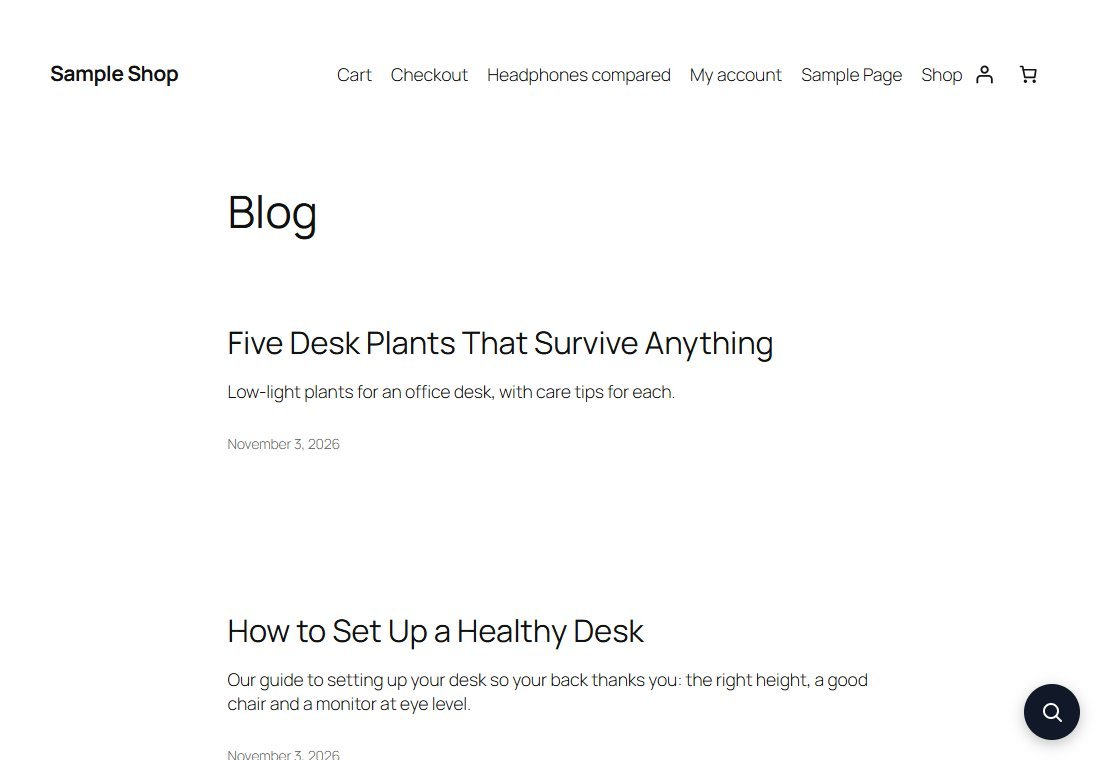
1The button
A round search button sits in the corner of every page. Its colour and corner are settings.
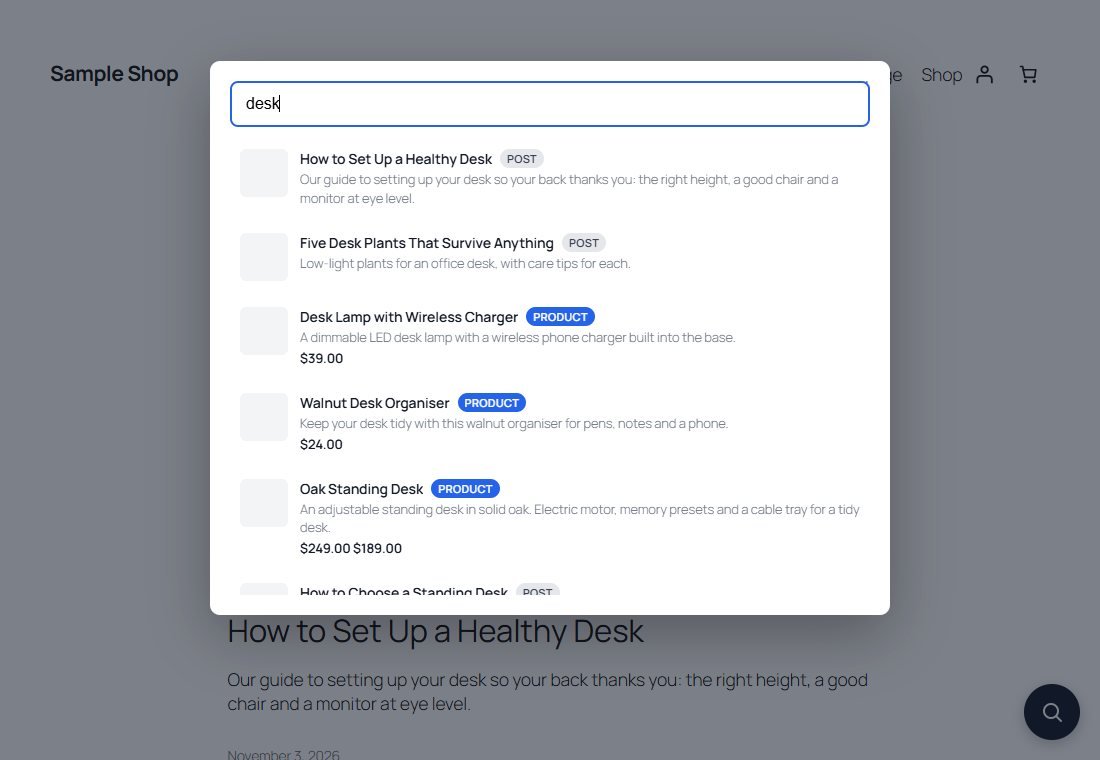
2Results as they type
After typing "desk" the panel shows posts and products together. Each has a label, a snippet from its text and, for products, the price. A product on sale shows the old and the sale price.
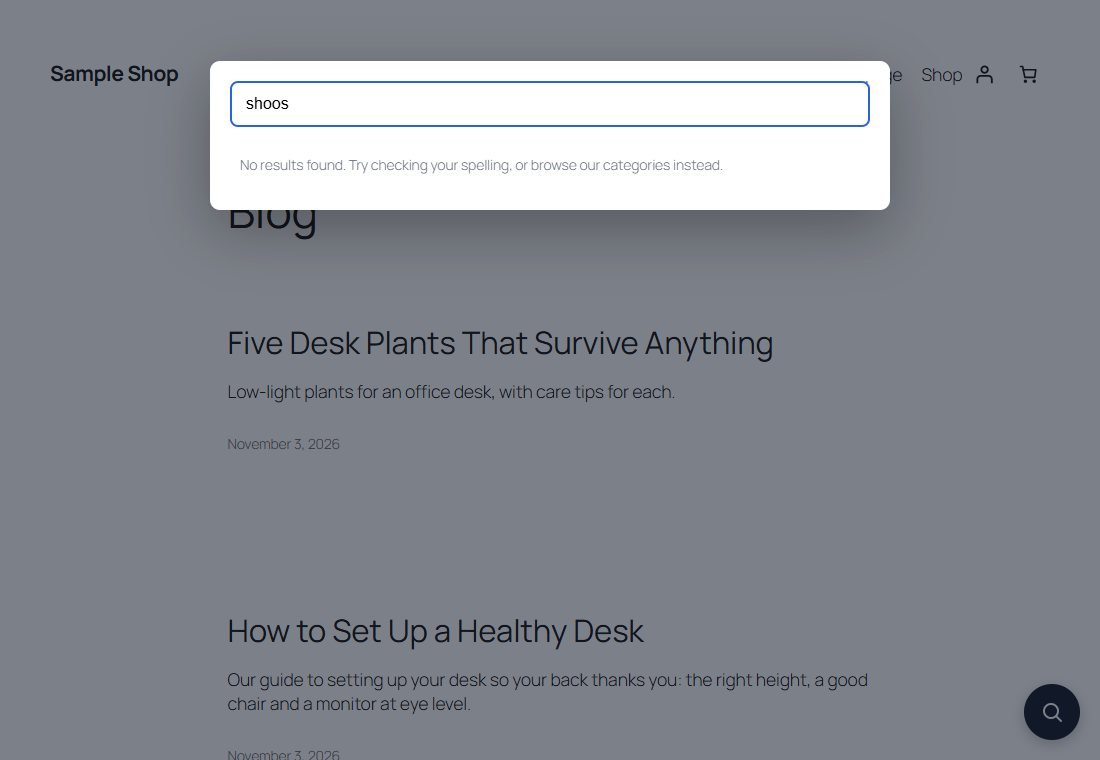
3When nothing matches
A misspelling such as "shoos" finds nothing, because the plugin searches for exactly what was typed. The visitor sees the message you wrote, which you can use to point them to your categories.
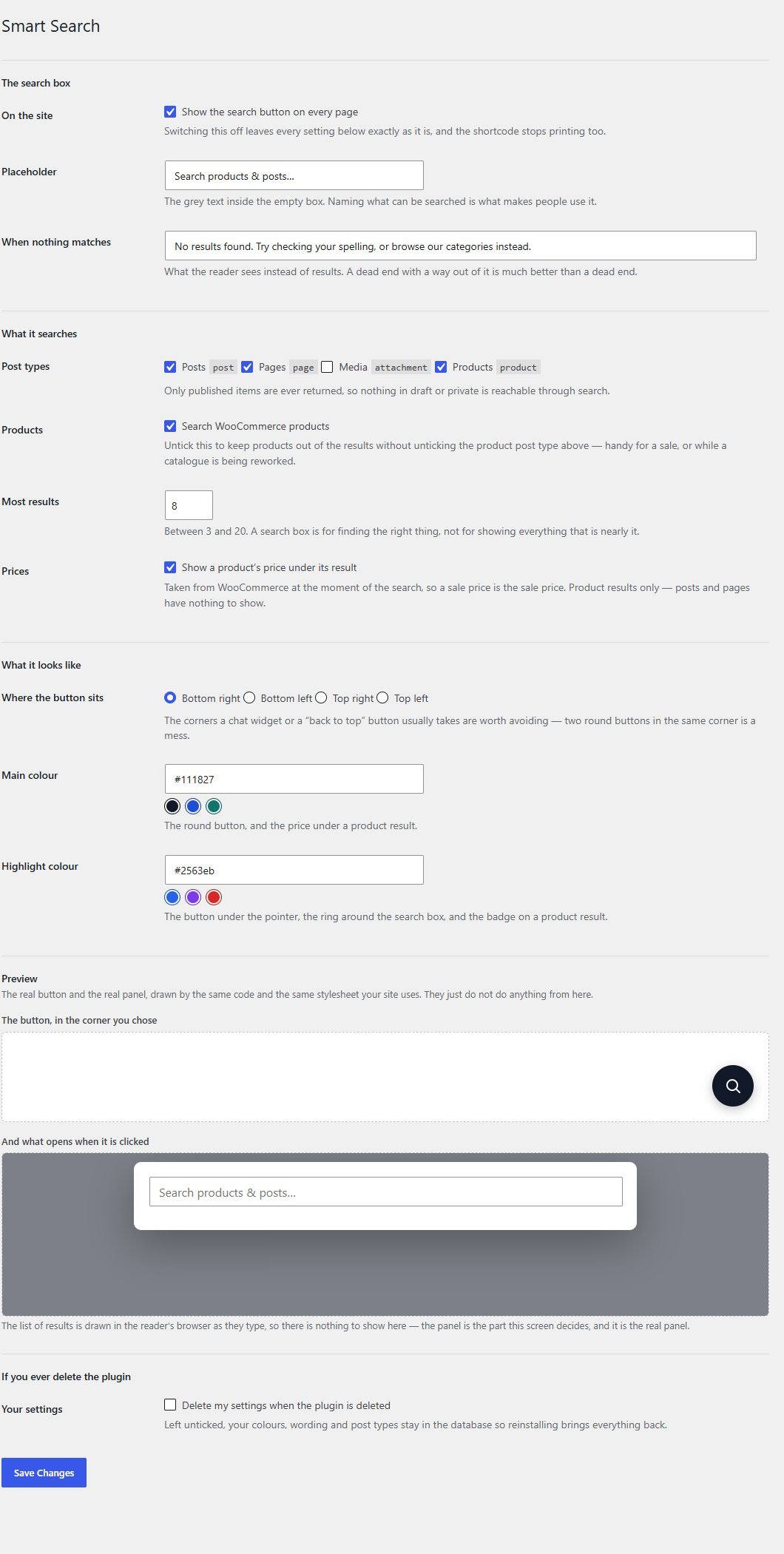
4Set it up in one screen
In Settings, Smart Search choose what is searched, the number of results, prices, the corner and the colours. The preview shows the real button and panel.
These steps use only features that are in the plugin.
Install and set up
Installing it is the same as any WordPress plugin: upload a zip in the WordPress admin. The button appears on every page straight after you activate it.
What you need
- A self-hosted WordPress site (WordPress.org software) running version 6.0 or newer
- PHP 7.4 or newer
- Permission to install plugins on your site
- WooCommerce, only if you want products and prices in the results
Running it on a real website
- Put the words your customers use into your product descriptions: matching is on the words typed
- Choose a button corner that does not clash with a chat button or a back-to-top button
- On a very large catalogue, watch your server's speed: every pause in typing is a database search
Upload and activate
In WordPress go to Plugins, Add New, Upload Plugin, choose the zip, install it and press Activate. The button appears on your site straight away.
Choose your settings
Open Settings, Smart Search. Pick what is searched, the number of results, whether to show prices, the corner and the colours.
Try it
Open your site, press the button and type a word from one of your products or posts.
What you receive after buying
You receive the plugin as a single zip download from Selar, straight after payment.
In the download
- The plugin, ready to upload to WordPress
- A readme describing the settings and the known limits
- A licence file (the terms are attached separately at the point of sale)
Not included
- Hosting or a WordPress site
- Translations: the plugin is in English, with every text ready to translate
- Installation or setup service
- Updates or new features are not promised
Limits and honest notes
Better you know now than discover it after you install. These come from the plugin's own readme and code.
- It searches for what was typed, not what was meant. There is no fuzzy matching, spell correction, stemming or synonyms. A search for "shoos" finds nothing, and "phone" does not find "iPhone".
- Every search is a database lookup and is not cached. That is fine on a normal site, and worth watching on a very large catalogue.
- No search history or analytics. The plugin does not record what visitors search for.
- A result without a featured image shows a grey square, not an icon.
- The snippet is a window of text. When the match was in the title, the snippet is the opening of the post rather than the matching part.
- There is no keyboard shortcut to open the panel. Opening it needs a click on the button or on a shortcode box.
- The settings preview shows no results, because results are drawn in the visitor's browser as they type.
- English only out of the box, though every text can be translated.
- Prices use WooCommerce's own formatting, in your shop's currency.
Questions
Do I need WooCommerce?
No. Without it the plugin searches your posts and pages. With it, products are searched as well and can show prices.
Does it send my visitors' searches to another company?
No. The words go to your own website only, and are not stored.
Does it find drafts or private pages?
No. Only published items can appear.
Can I put the search box inside a page?
Yes. Add the shortcode [megastore76_search] and the same box appears inline.
Will it replace my theme's search?
It adds its own button and shortcode. It does not change your theme's built-in search form.
Does it handle typos?
No. It searches for the exact words typed. You can cover common alternatives by adding those words to your product descriptions.
Can I change the colours and the corner?
Yes. Choose the corner, the main colour and the highlight colour in Settings, with a live preview.
Is it fast?
It returns a handful of results per search, the script is a single small file from your own site, and nothing loads from outside. Very large catalogues will see the database work.
Help visitors find it before they give up.
One payment, and a fast on-site search that runs on your own server.
Buy Smart Search · £19All our tools are listed on the tools catalogue. Free browser tools are in the tools hub.