Smart Buy Comparison: let readers compare products side by side
Smart Buy Comparison is a WordPress plugin that puts an interactive product-comparison tool inside any post or page with one shortcode. Readers search or tap to pick two to four products, and see them side by side with a price, a spec table, a Value Score and a button to your affiliate link. You enter your own products once, and use the same catalogue on as many pages as you like.
What Smart Buy Comparison does
Review and buying-guide pages work best when readers can compare the products themselves. A static table cannot do that. Smart Buy Comparison shows your catalogue as tappable cards: the reader picks the ones they care about and a comparison table builds itself.
You supply the products (name, price, rating, link and any specs you like) in one place in the WordPress settings. A shortcode then drops the widget into a post or page. Every button points to your own affiliate link, so the comparison can earn for you.
Who it is for
- Affiliate bloggers and review sites that write buying guides and roundups.
- Shops and comparison sites that want readers to compare a handful of products without leaving the page.
- Anyone who would rather type a catalogue once than build a new table for every article.
Who it is not for
- People who want the products found or priced for them: you type or import the catalogue and keep it up to date.
- Sites that need live prices from a retailer: prices are whatever you enter.
- Anyone who needs product photos, filters by price range or reviews from visitors: those are not built in.
How it works
You build the catalogue once, then place it wherever you like.
Enter your catalogue
In Settings, Smart Buy Comparison you import a JSON file or edit the JSON in a box. It lists categories, and in each category your products with a name, price, rating, link and specs.
Add the shortcode
Put [megastore76_smartbuy category="Headphones"] in a post or page. Leave off the category and readers can switch categories themselves.
Readers pick products
They search or tap up to four products. A comparison table appears with the price, a Value Score, each spec side by side and a button to your link.
The widget works out the best value
The Value Score combines the price (lower is better, compared with the other picks) and the rating. A product that clearly beats the others is marked with a Best Value badge.
It never invents data. A product without a price shows "Check today's price" instead, and a score is worked out only from the information you actually entered.
Features
This is the complete list of what version 1.0.6 does. Nothing here is a roadmap item.
Interactive comparison
Readers pick up to four products (you can set the limit) from cards and see a side-by-side table that updates as they pick. A Clear selection button starts again.
One shortcode
[megastore76_smartbuy] shows all categories with a switcher. Add category="Name" to lock the widget to one category.
Search the picker
A search box filters the products as the reader types, matching the start of each word in the name and type. If nothing matches, it shows the closest matches and says so.
Long categories stay tidy
With no search typed, the first 24 products show, with a Show all button. Picked products always stay visible.
Value Score
A score out of 100 in a ring, combining price (45%) and rating (55%). If a product has only one of them, the score uses what exists. With neither, the ring is empty rather than showing a made-up zero.
Best Value badge
Given only to a single outright winner among the picks. If scores tie or cannot be told apart, no badge is shown.
Your own data, as you write it
Prices can be numbers (the currency symbol comes from Settings or from the product's own currency) or text such as "From £349", shown exactly as written. Ratings of 4.3, 8.0/10 and 86/100 are all understood.
Affiliate buttons
Each product links to the address you give it, opened in a new tab and marked nofollow and sponsored. If a link is not a working web address it shows "Link coming soon".
Spec table from your own fields
Any spec names you use become rows in the comparison table. Products that lack one show a dash.
Settings you can change
Maximum products to compare, the accent colour, the currency symbol, and the catalogue itself, by file import or by editing the text. A bad import is refused and the old catalogue stays.
Clean uninstall
Deleting the plugin removes its settings.
Walkthrough: from a catalogue to a comparison
These are real screenshots of the plugin running on a test WordPress site. The products, prices and links are made-up examples.
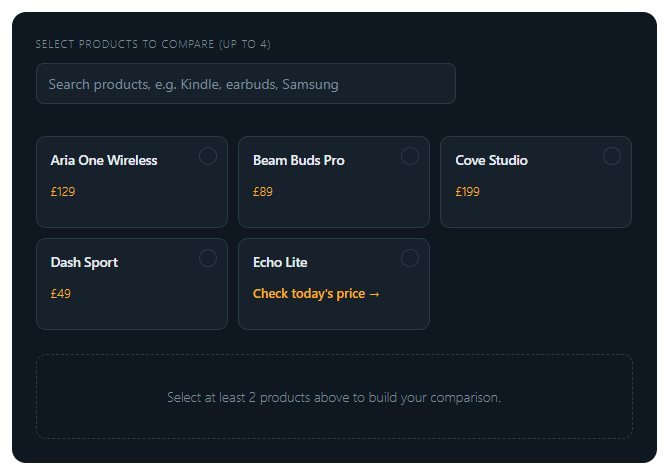
1A tidy picker in your post
The shortcode shows your products as cards with a search box. Products with a price show it; the one with no price shows a link to check today's price.
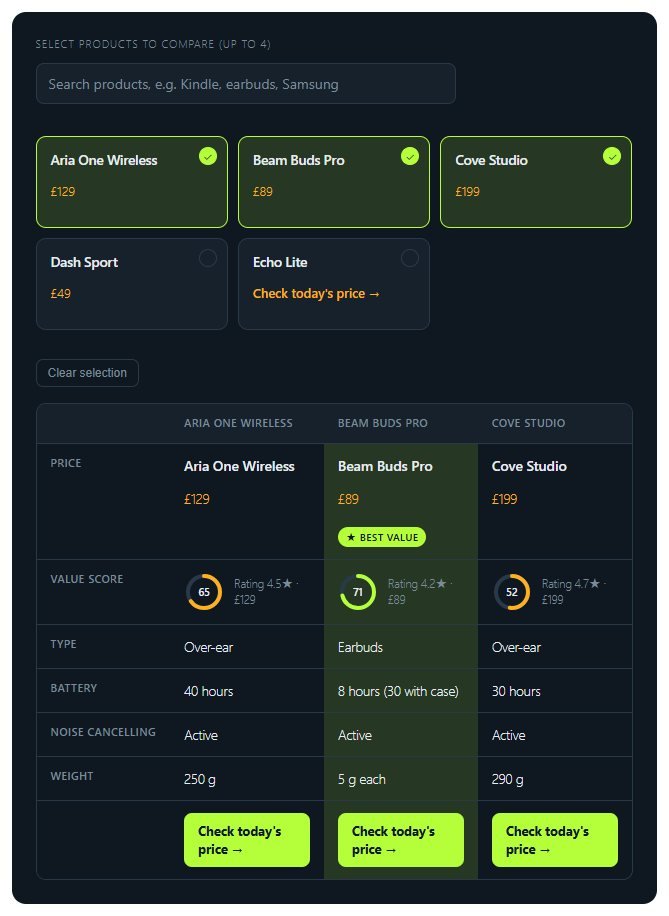
2Readers choose and compare
Here three products are picked. The table shows prices, Value Scores with the rating, each spec side by side and a button for each product. The middle one has earned the Best Value badge.
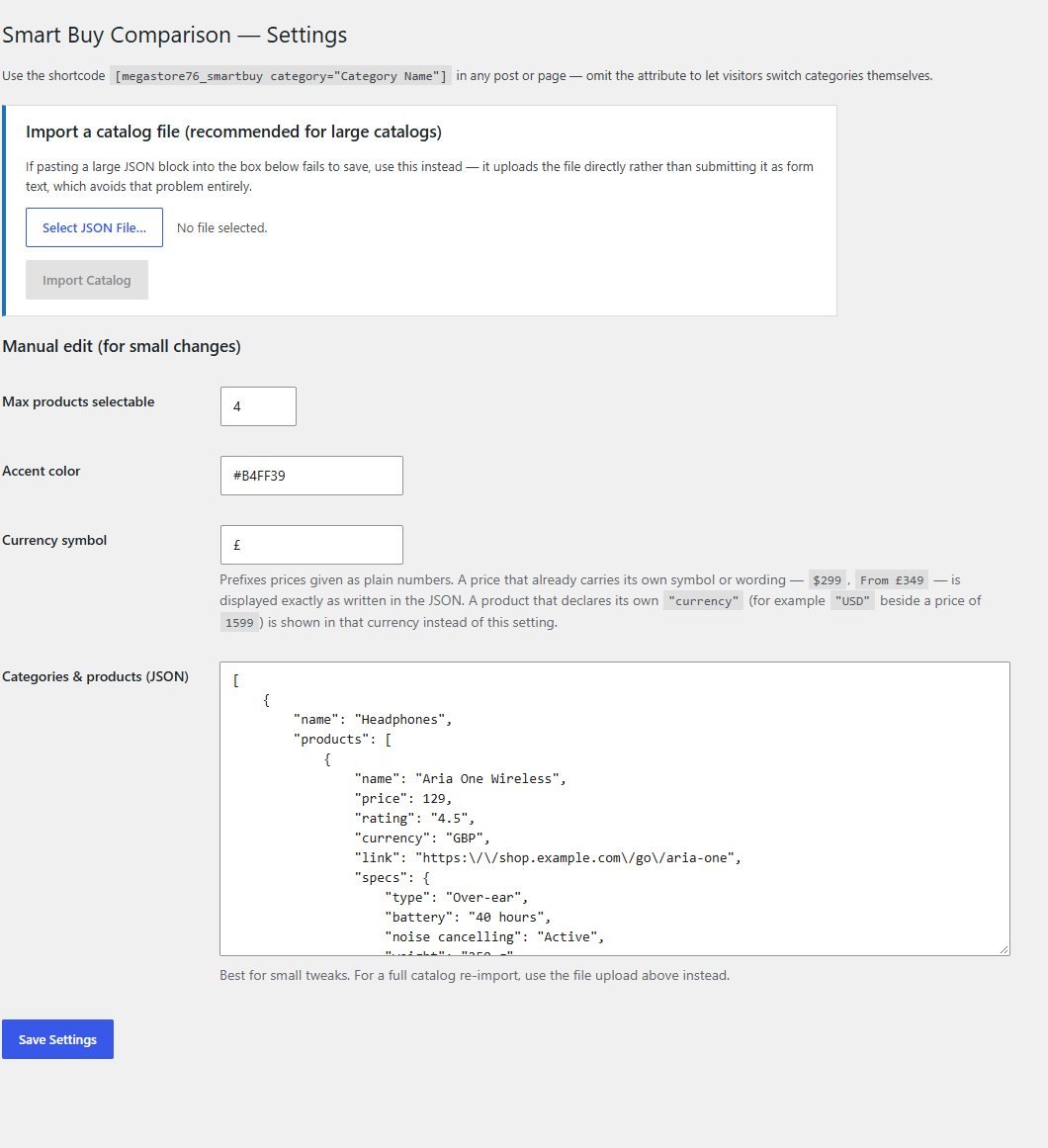
3Manage the catalogue in WordPress
In Settings, Smart Buy Comparison you import a catalogue file or edit the JSON. Set the maximum products, the accent colour and the currency symbol.
These steps use only features that are in the plugin.
Install and set up
Installing it is the same as any WordPress plugin: upload a zip in the WordPress admin. The catalogue is a small text file in a simple format (JSON), so you should be comfortable editing structured text, or ask someone to prepare it once.
What you need
- A self-hosted WordPress site (WordPress.org software) running version 5.8 or newer
- PHP 7.4 or newer
- Permission to install plugins on your site
- Your products with names, links and, ideally, prices, ratings and specs
Running it on a real website
- Keep the catalogue to a size you can maintain: the whole catalogue is sent with each page that shows the widget
- Update prices and links yourself when they change: the plugin does not look them up
- Use real affiliate links with your own tracking tag
Upload and activate
In WordPress go to Plugins, Add New, Upload Plugin, choose the zip, install it and press Activate.
Load your catalogue
Open Settings, Smart Buy Comparison. Import a catalogue JSON file, or edit the example in the box. Press Save Settings.
Add the shortcode
Edit a post or page and add the shortcode.
Check it on the page
View the page and try picking products. Adjust the accent colour and currency in Settings if you like.
What you receive after buying
You receive the plugin as a single zip download from Selar, straight after payment.
In the download
- The plugin, ready to upload to WordPress
- A readme with installation steps, the catalogue format and a changelog
- A clean uninstall routine
Not included
- Hosting or a WordPress site
- A ready-made product catalogue: you provide your own products and links
- Installation or setup service
- Updates or new features are not promised. You get the current version, 1.0.6
Limits and honest notes
Better you know now than discover it after you install. These come from the plugin's own code.
- You maintain the data. Prices, ratings and links are whatever you enter. Nothing is looked up or refreshed for you.
- No product photos. Products are shown as text cards.
- The catalogue is a text file. You edit it as JSON or import a file. There is no point-and-click product editor.
- The Value Score is a simple guide. It uses only price and rating, as you entered them, and compares prices only among the products picked. It is not a lab test.
- Up to four products at once by default. You can change the limit in Settings.
- The whole catalogue loads with the page. Very large catalogues make pages heavier, so keep them to what you need.
- Prices are not live. If a retailer changes a price, the widget shows your old figure until you change it.
- One catalogue per site. You can show different categories on different pages, but every page draws from the same catalogue.
- English wording in the widget. Labels such as Best Value and Check today's price are fixed in the plugin.
Questions
Do I have to type every product by hand?
You can import a catalogue file, which suits a large list, or edit the text box for small changes. There is no automatic product finder.
Does it show product photos?
No. Products appear as text cards with their name, price and type.
How is the Value Score worked out?
From the price, where cheaper than the other picks scores higher (45% of the score), and the rating out of five (55%). If a product has only one of the two, the score uses just that. If it has neither, no score is shown.
What if I do not have a price for a product?
The card and the table button say "Check today's price" and link to the retailer. The score then uses the rating alone.
Can I use pounds, dollars or euros?
Yes. Set a symbol in Settings, or give a product its own currency, for example USD, and it is shown correctly.
Can I show only one category on a page?
Yes. Add the category name to the shortcode. Leave it off and readers can switch categories.
Do the buttons earn me commission?
They link to the addresses you provide, marked as sponsored links. Whether you earn depends on your affiliate programme.
Does it work with page builders?
It works anywhere WordPress runs shortcodes, including the shortcode block in the block editor.
Let readers compare. Let the buttons do the selling.
One payment, one shortcode, and a comparison tool you can use across your whole site.
Buy Smart Buy Comparison · £19All our tools are listed on the tools catalogue. Free browser tools are in the tools hub.