Urgency & Scarcity: a real reason to buy today, using only real store data
Urgency & Scarcity is a WooCommerce plugin that adds four small messages to your product pages: a countdown to an offer end that you set, an "Only 4 left" alert from your real stock level, a "4 sold in the last 48 hours" note from your real orders, and a live count of people viewing the product right now. Nothing is invented or randomised: if the real data is not there, the message is not shown.
What Urgency & Scarcity Widgets does
Shoppers are more likely to decide when they can see that stock is limited or that others are buying. Many plugins fake this with made-up numbers and endless countdowns, which can break the trust of your customers and, in some places, the rules on misleading advertising.
This plugin only shows what is true. The low-stock alert reads the stock level WooCommerce tracks. The sold count adds up your real orders. The viewer count counts the visitors who really have the page open. The countdown ends at a date and time that you set. If any of these has nothing real to show, that message simply does not appear.
Who it is for
- WooCommerce shops that want honest urgency on product pages.
- Stores with real, limited stock or real time-limited offers.
- Owners who want to use scarcity messages without the risk of faking them.
Who it is not for
- Sites without WooCommerce: it works on WooCommerce product pages.
- Anyone who wants made-up or random numbers: the plugin does not allow it, on purpose.
- Stores that do not track stock, if they want the low-stock alert: it needs WooCommerce stock management switched on for the product.
How it works
Four messages, each from its own real source, shown above the add-to-cart button.
Countdown
On a product's edit page you set the date and time the offer ends. The product page shows a ticking timer to that moment. You can also use one site-wide countdown that resets each day at an hour you choose.
Low stock
When the stock WooCommerce tracks for a product falls to your threshold (5 by default) or below, it shows "Only 4 left in stock!".
Recently sold
It adds up units of that product in your processing and completed orders over a window you set (48 hours by default) and shows the count once it reaches your minimum.
Live viewers
Each product page checks in with your site every so often. The plugin counts the visitors who checked in during the last minute and a half, and shows the number once it reaches your minimum.
You can switch each message on or off, change its wording, and choose whether it sits before the add-to-cart button, after the title or in the shop list.
Features
This is the complete list of what version 1.0.0 does. Nothing here is a roadmap item.
Countdown timer
Per product (you set the end date and time on the product's edit page), or one site-wide countdown. The site-wide one can reset to the same hour every day.
Low-stock alert
Shows "Only {qty} left" when real stock is at or below your threshold. You write the wording.
Recently sold
Counts real units sold in a window of hours you choose, from processing and completed orders. Shown only above a minimum you set.
Live viewers
A count of visitors with the page open right now, shown only above a minimum you set (2 by default).
Hides when empty
If there is no countdown set, no stock figure, too few sales or too few viewers, that message is not shown at all.
Your own wording
Each message has its own text, with a placeholder where the number goes.
Placement
Before the add-to-cart button, after the product title or in the shop list.
Per-message switches
Turn the countdown, stock, sold and viewers messages on or off separately.
Product-page box
On each product's edit screen, a small box for that product's countdown end.
Light on your database
Sold counts are cached for 15 minutes and old viewer check-ins are cleared out regularly.
Walkthrough: what shoppers see, and where you set it
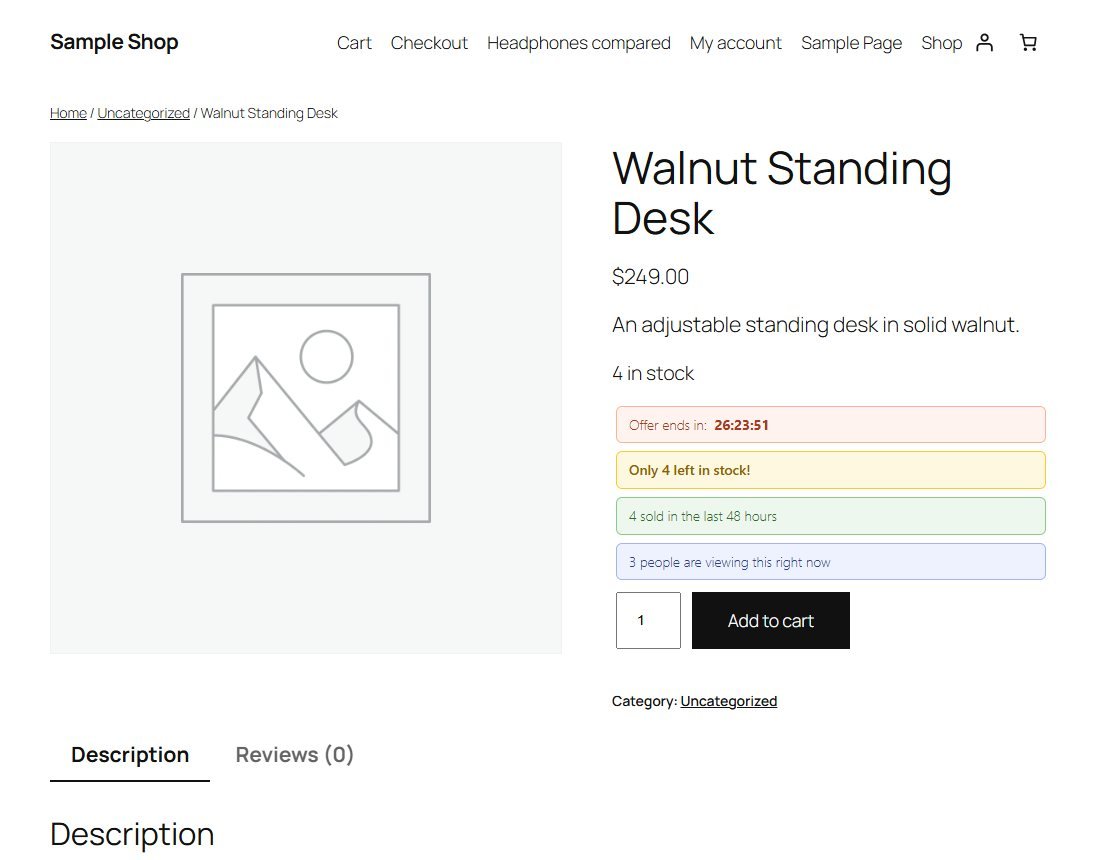
These are real screenshots of the plugin running on a test WooCommerce shop. The product, the four test orders and the three visitors are examples I made for the picture.
1Four honest messages
Above the add-to-cart button: a countdown to the offer end, a low-stock alert, a sold count and a live viewers count. Each one comes from real data.
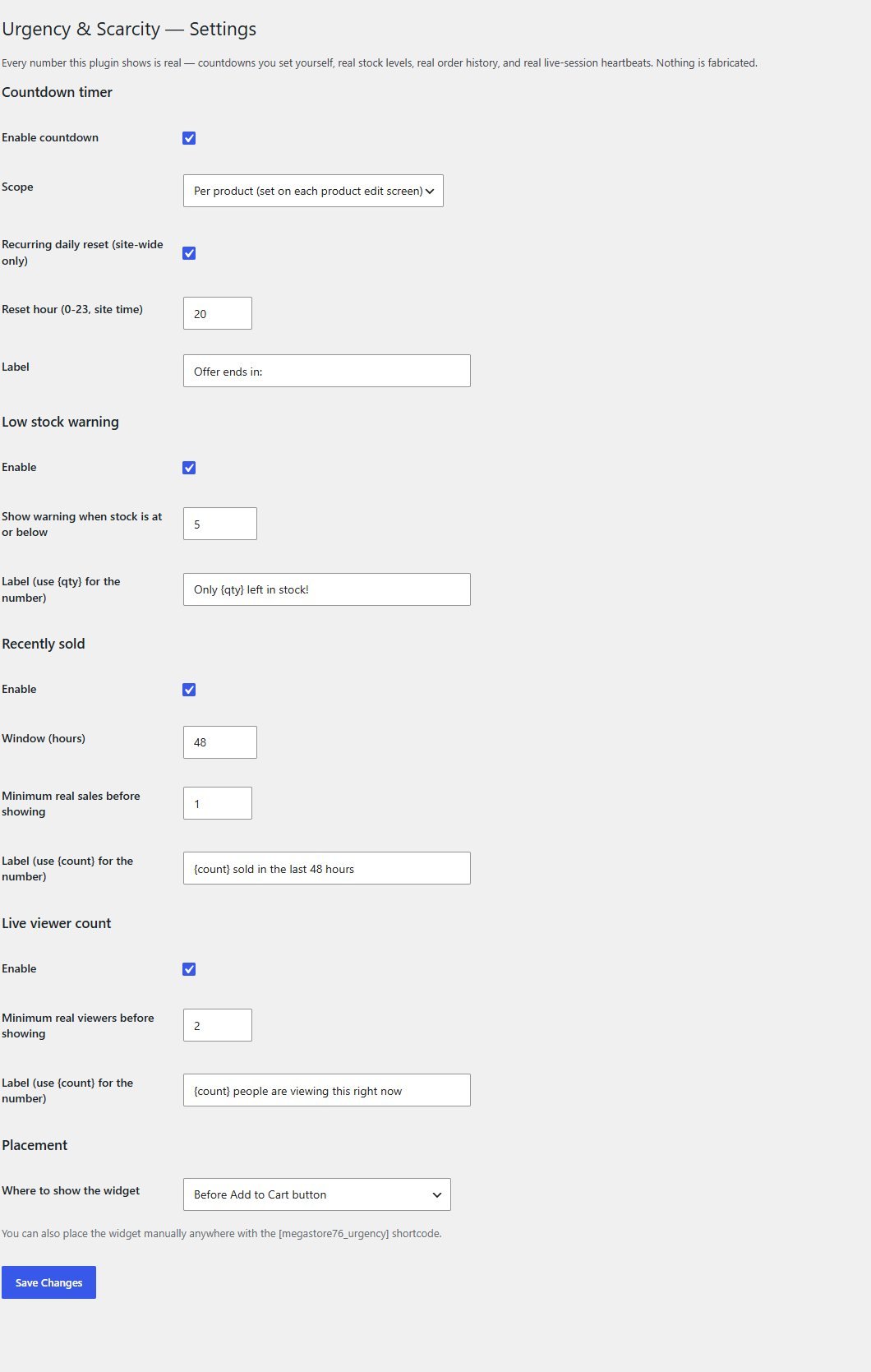
2Choose what shows
In the Urgency & Scarcity settings switch each message on or off, set the thresholds and the minimums, write the wording and choose where it is placed.
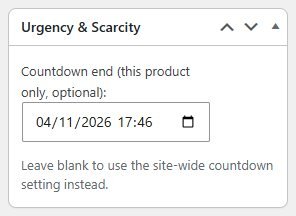
3Set a countdown for one product
On a product's edit page, a small box lets you enter the date and time that product's offer ends. Leave it empty and no countdown is shown for that product.
These steps use only features that are in the plugin.
Install and set up
Installing it is the same as any WordPress plugin: upload a zip in the WordPress admin. WooCommerce must already be installed.
What you need
- A self-hosted WordPress site (WordPress.org software), kept up to date
- WooCommerce installed and active
- For the low-stock alert: stock management switched on for the products
- Permission to install plugins on your site
Running it on a real website
- Only set a countdown for offers that really end at that time
- Turn on stock management for products where you want the low-stock alert
- Choose minimums that make sense for your traffic: the messages appear only once the real numbers reach them
Upload and activate
In WordPress go to Plugins, Add New, Upload Plugin, choose the zip, install it and press Activate. An Urgency & Scarcity menu appears.
Choose your settings
Open the plugin's settings. Switch on the messages you want and set the thresholds, minimums and wording.
Set countdowns
On each product's edit page, enter the offer's end date and time in the Urgency box, then update the product.
View a product
Open a product page in a fresh window. The messages that have real data appear above the add-to-cart button.
What you receive after buying
You receive the plugin as a single zip download from Selar, straight after payment.
In the download
- The plugin, ready to upload to WordPress
- A clean uninstall routine
Not included
- WooCommerce itself, hosting or a WordPress site
- Installation or setup service
- Updates or new features are not promised. You get the current version, 1.0.0
Limits and honest notes
Better you know now than discover it after you install. These come from the plugin's own code.
- It needs WooCommerce. The messages go on WooCommerce product pages.
- Each message shows only when it has real data. A product with no countdown date set, no tracked stock, too few sales or too few viewers shows nothing for that message. That is intended.
- The daily-reset countdown is a repeating timer. The site-wide option restarts every day at the hour you choose. Use it only for an offer that really does repeat daily, and do not present it as a one-off deadline.
- Per-product countdowns are set by hand. You enter the end time for each product. There is no bulk setting.
- The low-stock alert needs stock management on. If WooCommerce is not tracking a product's stock, there is no figure to show.
- The sold count can lag by up to 15 minutes because it is cached. It counts units in processing and completed orders.
- The viewers count is the number of browsers checking in on that page in the last 90 seconds. Someone with two tabs open counts twice, and visitors with JavaScript off are not counted.
- Live viewers adds a small request from each product page to your site while it is open.
- The same settings apply to every product, apart from each product's countdown end. There are no per-category rules.
- English wording out of the box, though every message is editable.
Questions
Is any of it fake?
No. Stock, sold units and viewers all come from real data on your site, and the countdown ends at a time you set. If the data is not there, the message is hidden.
Do I have to use the countdown?
No. Each of the four messages has its own switch.
Does the countdown restart every day?
Only if you choose the site-wide option with the daily reset. A per-product countdown ends at the exact date and time you enter and then disappears.
Why does the low-stock message not appear on some products?
Either the product's stock is above your threshold, or stock management is off for that product so there is no number to show.
How does it know how many people are viewing?
Each product page pings your site every so often. The plugin counts the visitors who pinged within the last minute and a half.
Will it slow my store down?
The sold count is cached for 15 minutes, and old viewer records are cleared regularly. The viewers message makes one small request from each open product page.
Can I change what the messages say?
Yes. Each message has its own wording, with a placeholder for the number.
Does it work without WooCommerce?
No. It is built for WooCommerce product pages.
Create urgency you can stand behind.
One payment, and four messages that are only ever true.
Buy Urgency & Scarcity Widgets · £27All our tools are listed on the tools catalogue. Free browser tools are in the tools hub.